How to connect Solar Camera to NVR
Catalogue
Under the same network segment 1
Under the diffierent network segment 1
Required devices and firmware. 2
3. Switch camera power consumption mode. 4
5. Configure a recording schedule. 5
6. *Configure camera ISUP Access. 6
3. *Configure Camera ISUP access. 9
4. Adding Solar Camera to NVR.. 10
Required devices and firmware. 16
Solar Camera Configuration. 16
2. Open the camera webpage. 17
3. Switch camera power consumption mode. 17
5. Configure a recording schedule. 19
6. Configure camera OTAP Access. 20
Network Topology Map
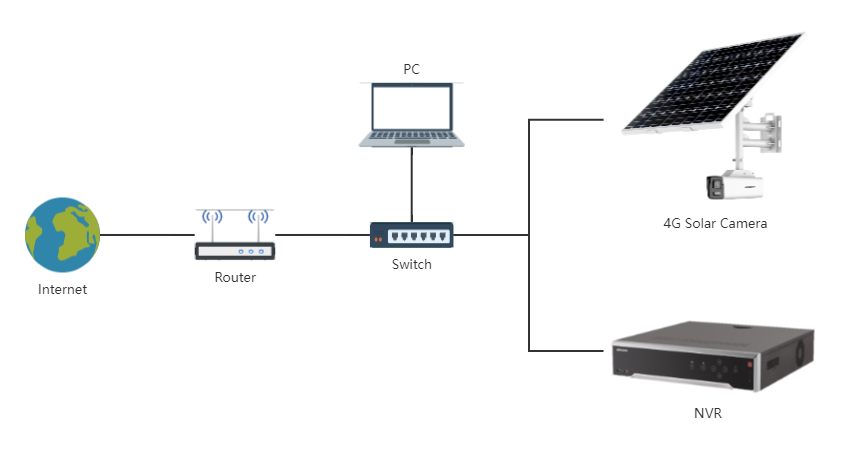
Under the same network segment
When you get the camera and NVR, you can configure them in the same network segment before taking them to the site for installation.
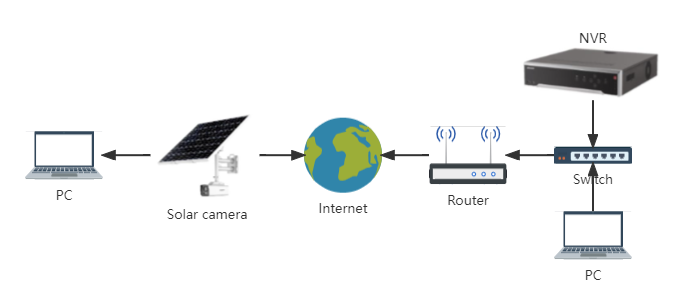
Under the diffierent network segment
When you already have a fixed IP address mapped to the external network by NVR, you can directly configure NVR at the installation site.
ISUP Protocol
Required devices and firmware
One I series device, whose version must use V4.50.000_210915. This article uses DS-7732NI-K4/16P V4.50.000_210915 as an example.
One solar camera that supports OTAP protocol. This article uses DS-2XS6A87G1-L/C36S80 V5.7.30 build 221230 as an example.
Solar Camera Configuration
Preparation
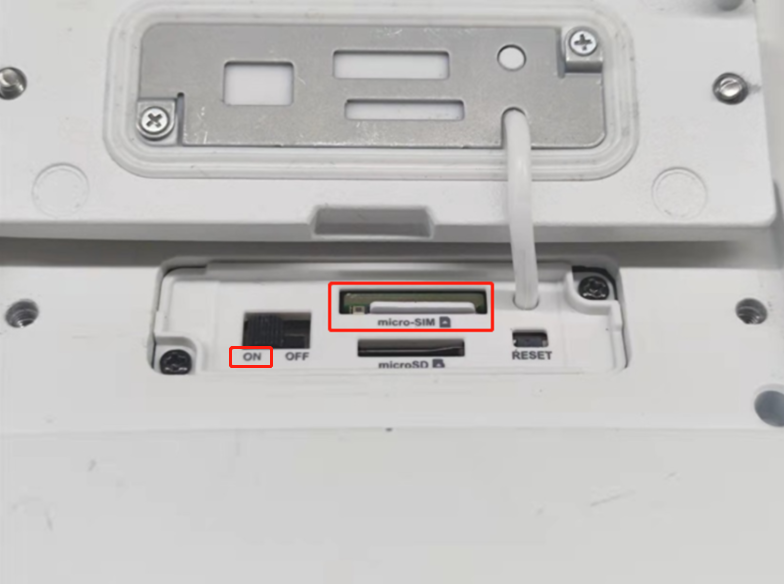
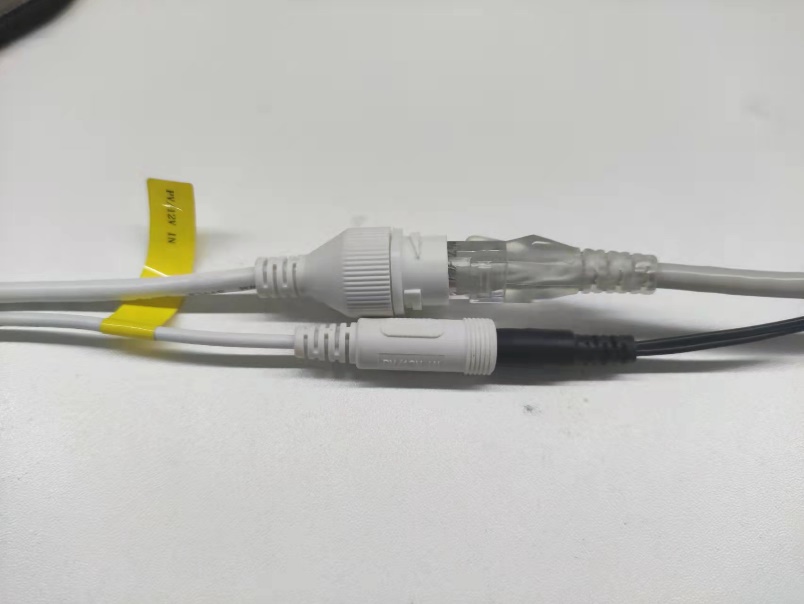
Turn the camera switch to ON,and insert a 4G SIM card. Connect the camera to the power supply and network cable
Open the camera webpage
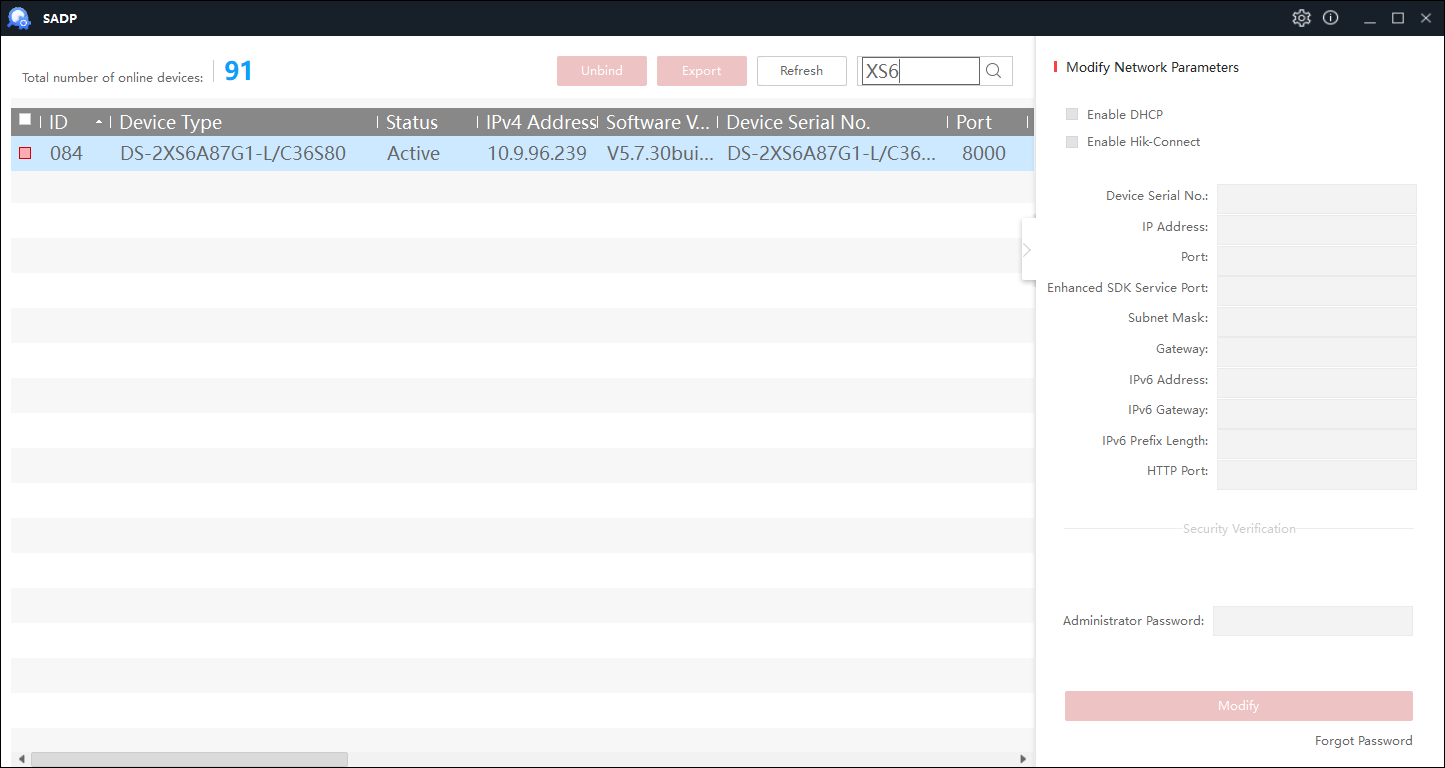
Open SADP, find Solar Camera, and double-click to open the webpage.
Switch camera power consumption mode
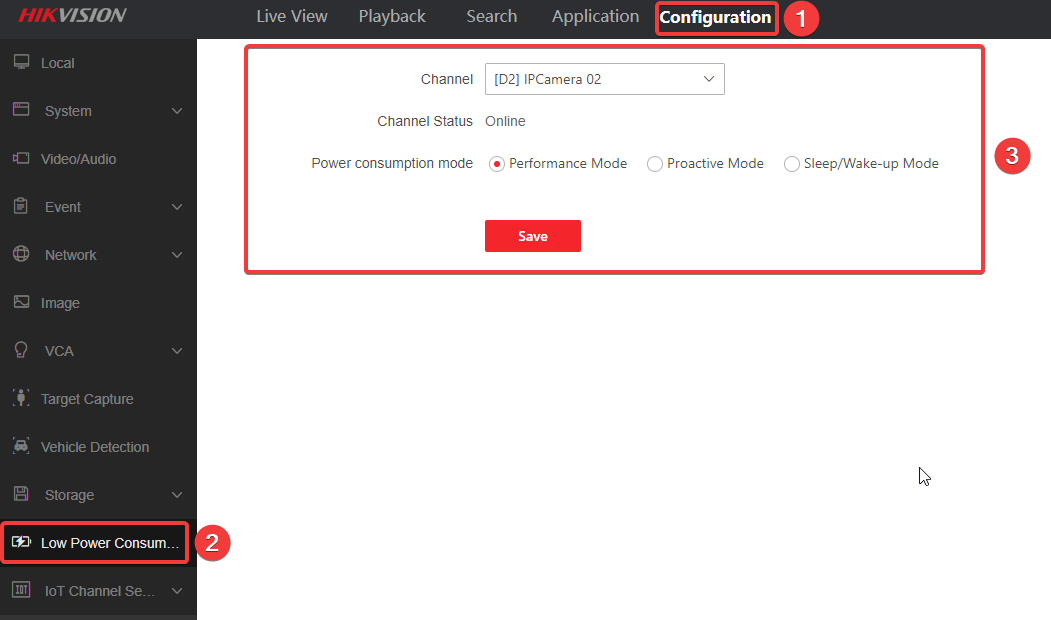
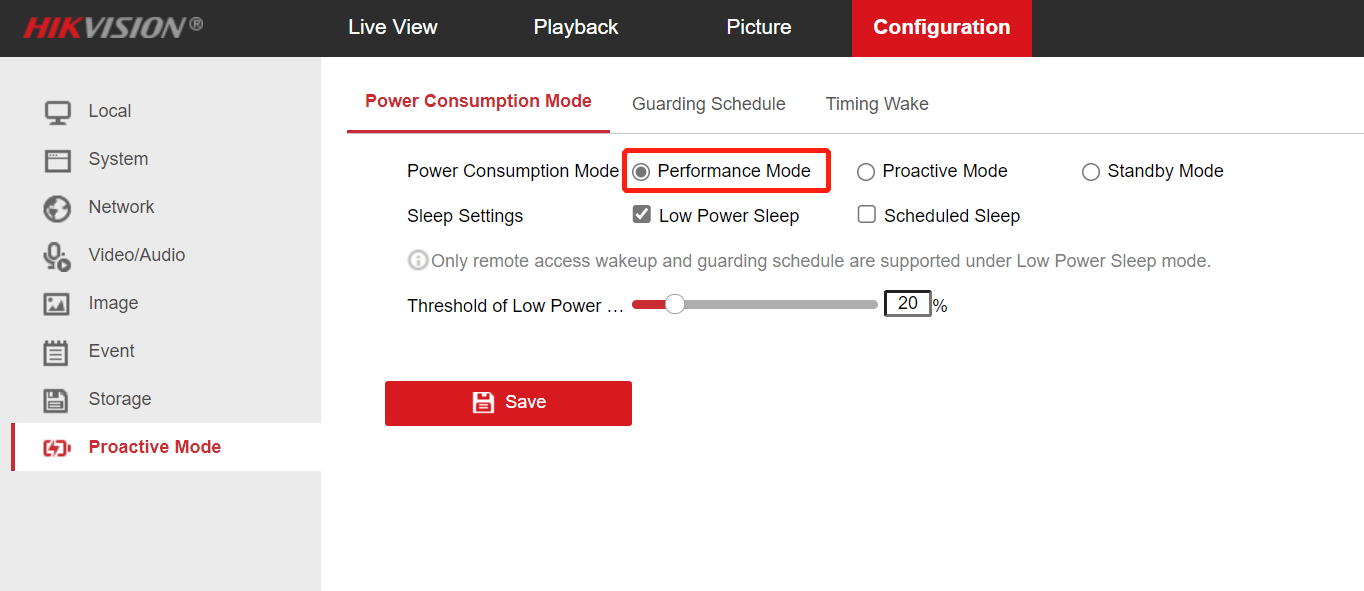
In Proactive Mode - power consumption mode, change the power consumption mode of the camera to Preformance Mode.
The camera's default factory power consumption mode is proactive mode, in which no event triggers the camera to go offline. The camera can be searched through the Internet cable within the first 5 minutes after power-on, and then the camera is in offline mode. Please visit the camera webpage within 5 minutes after power-on. For further configuration, change the proactive mode to performance mode. If the camera is offline, you can power it up again.
After configuring all the content, you can adjust the power consumption mode to the mode you need, and the default is Proactive Mode.
Check 4G network
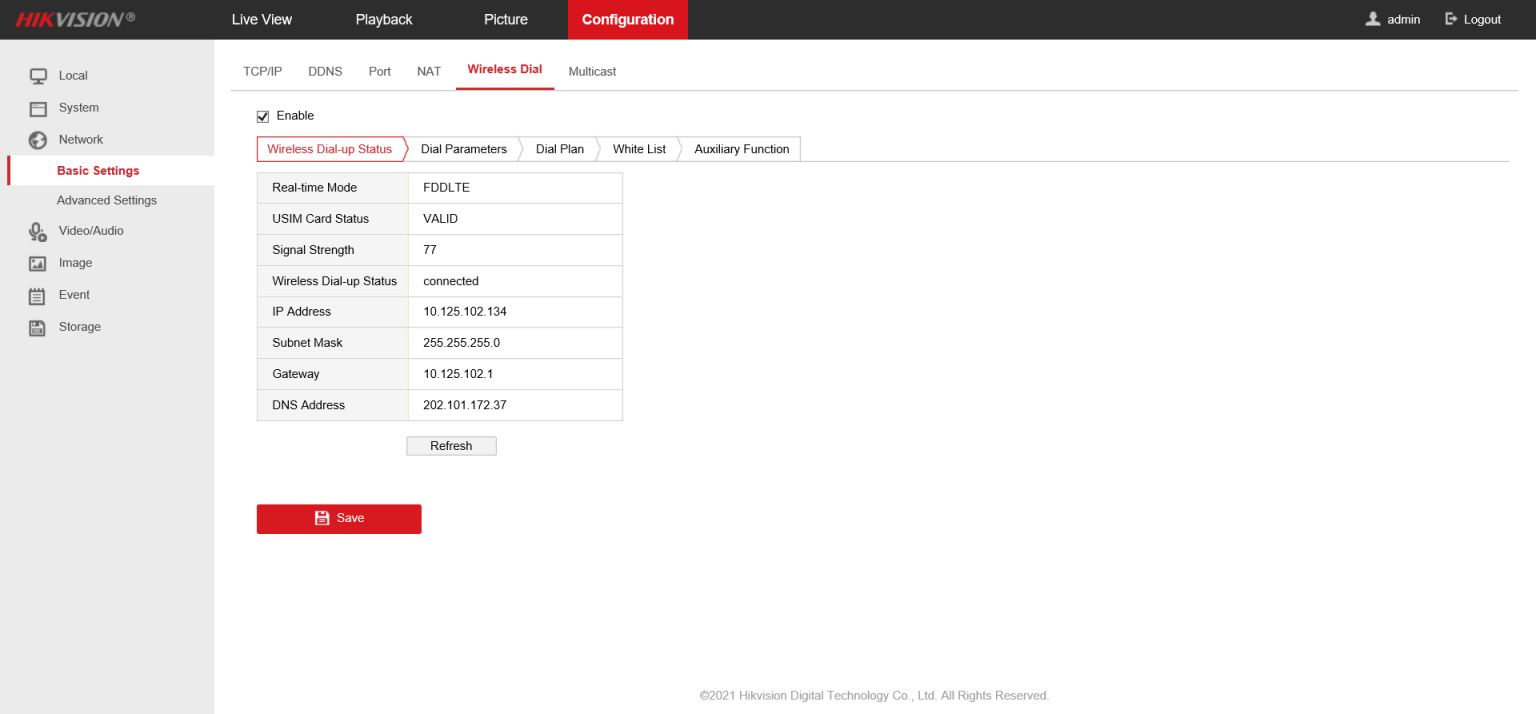
In Network - Basic Settings - Wireless Dial page, check whether the 4G connection is normal.
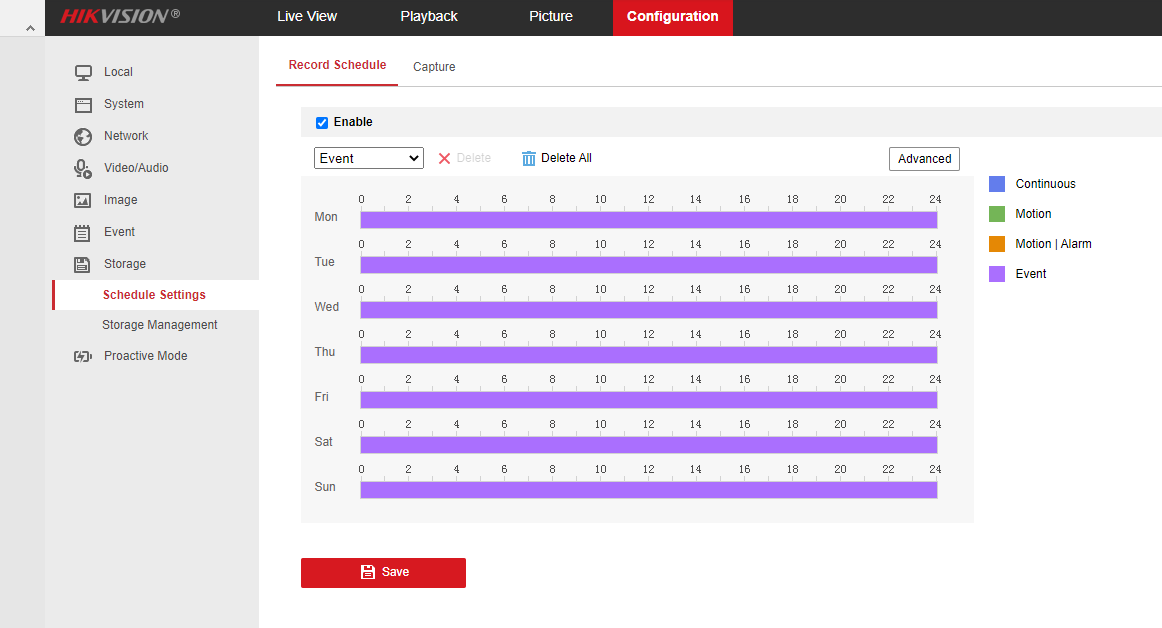
Configure a recording schedule
Configure a recording schedule on the camera to ensure that the camera has videos required by the customer for video uploading.
*Configure camera ISUP Access
If you have not configured NVR yet, please go to the Step 1 of NVR configuration to continue configuring.
If you have already configured the ISUP address for NVR, please go to the Step 3 of NVR configuration to continue configuring.
NVR configuration
Open NVR webpage
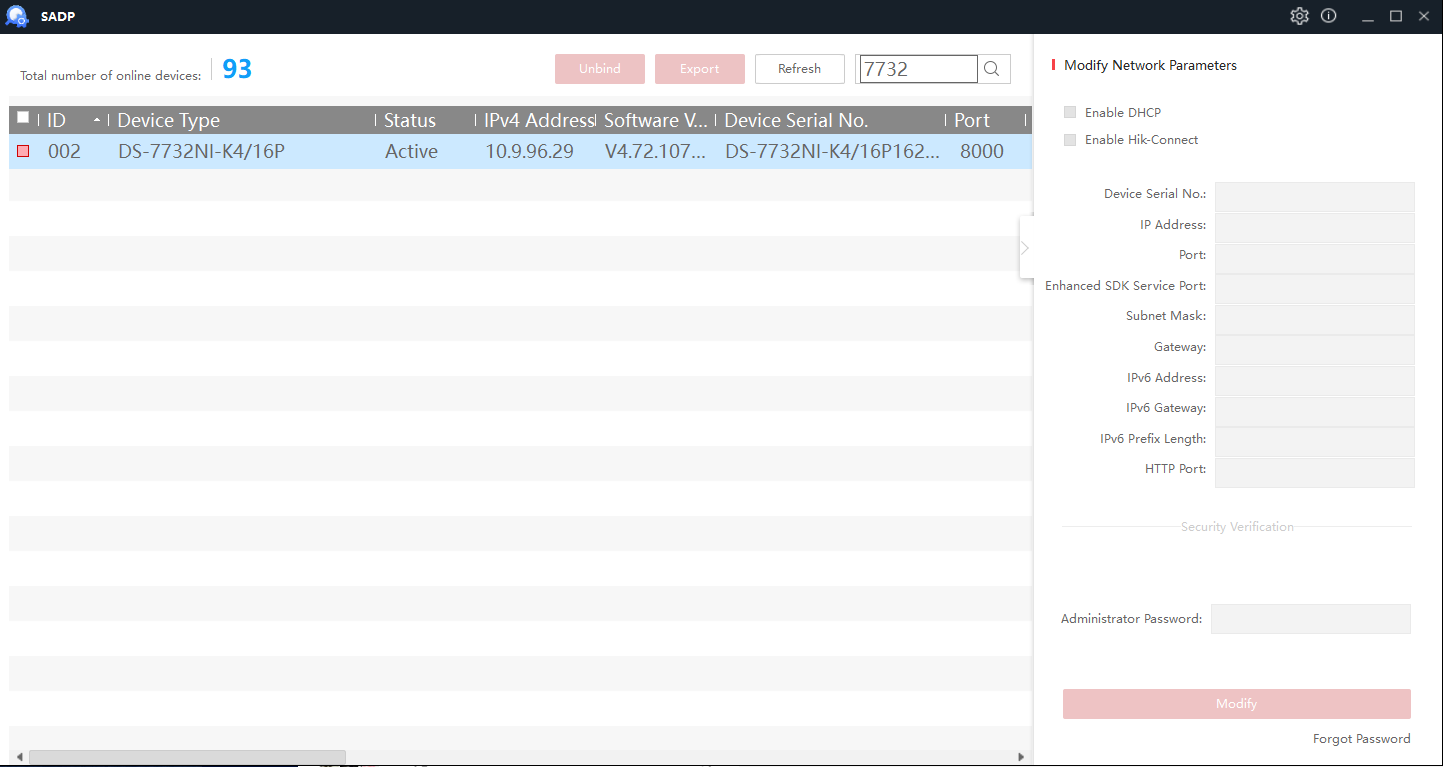
Open SADP, find NVR and double-click to open webpage, ensure the NVR connected to the public network through the router.
Port mapping
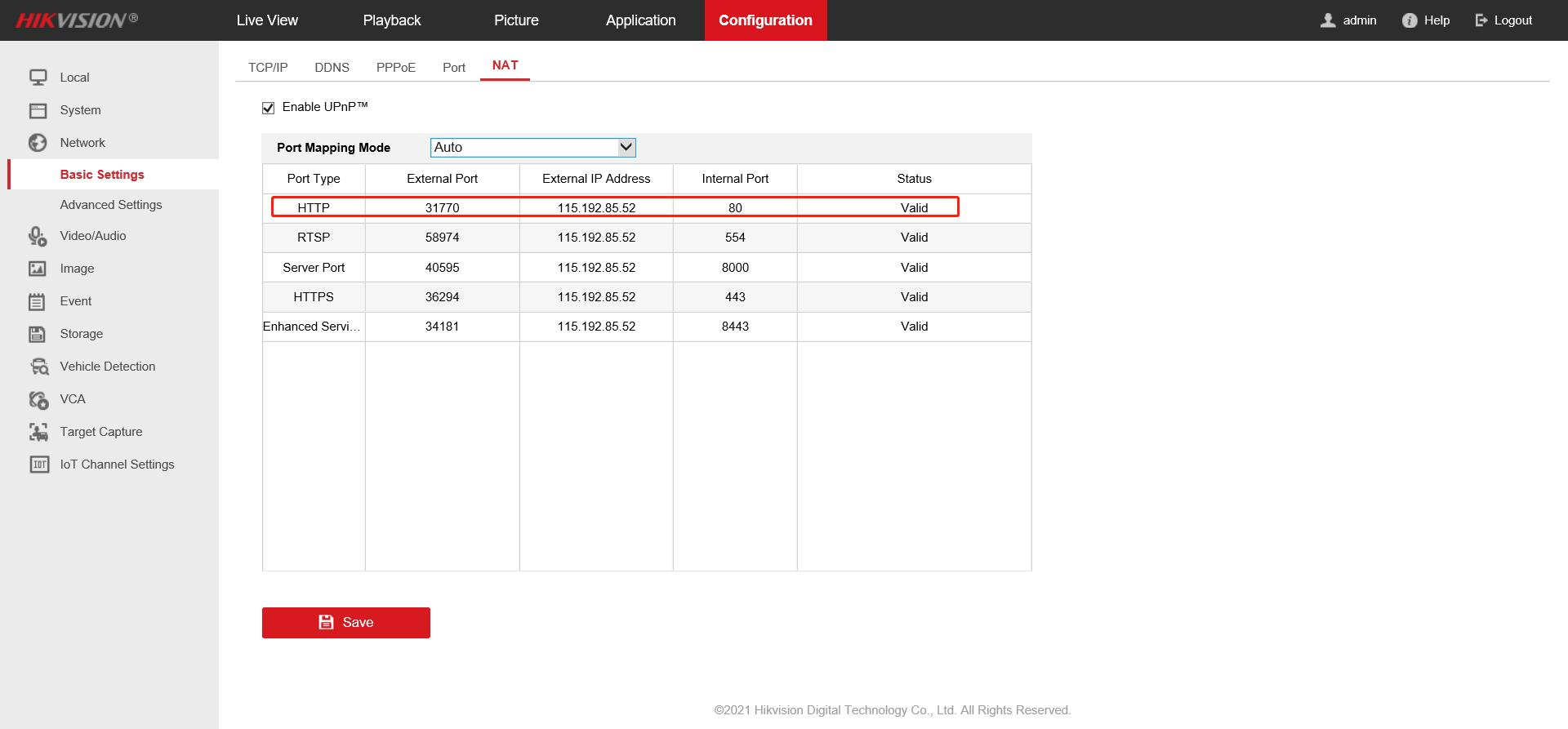
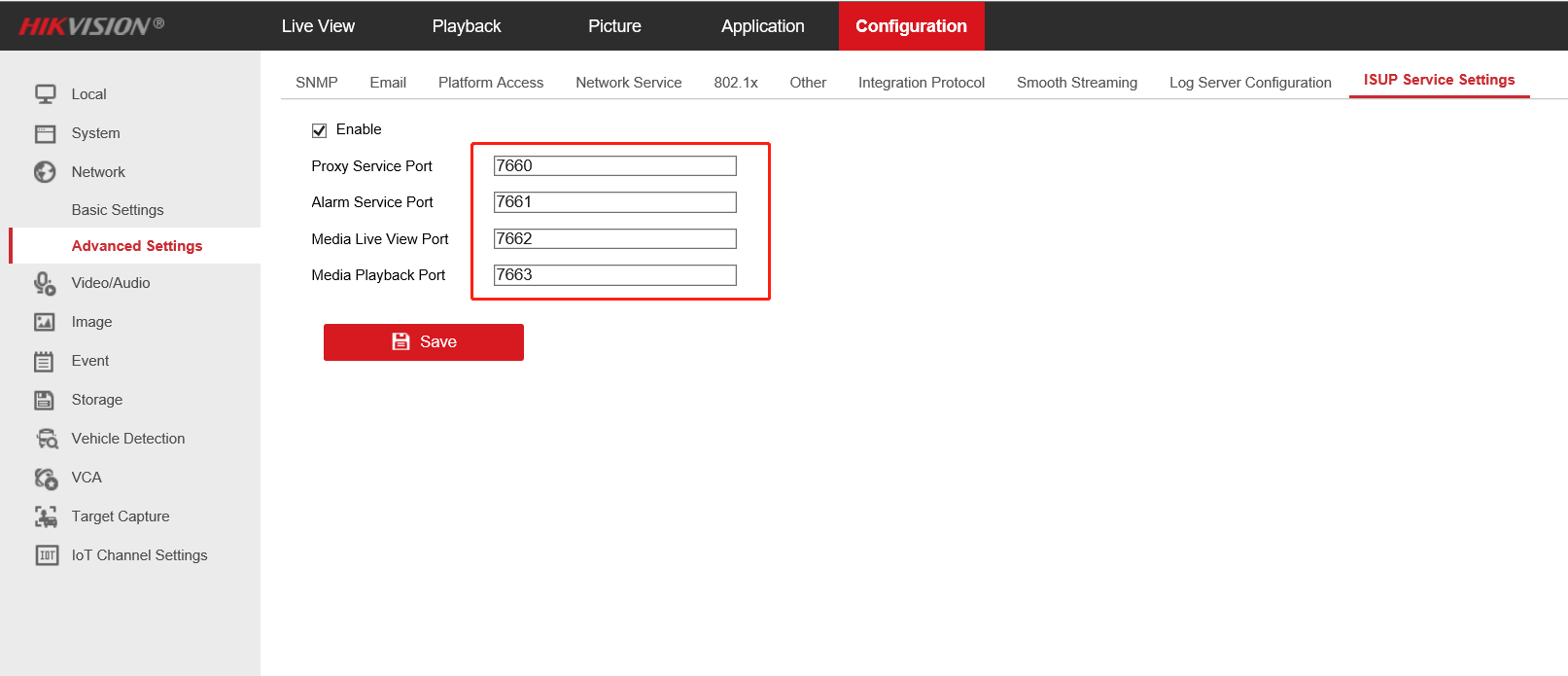
In the NVR webpage, network setting, record the external port of port 80[1] in NAT and the following 4 ports[2] in ISUP service setting
[1]: Port 80: receive camera HTTP alarm
[2]: The purpose of each port is stated
Open port mapping page of the router
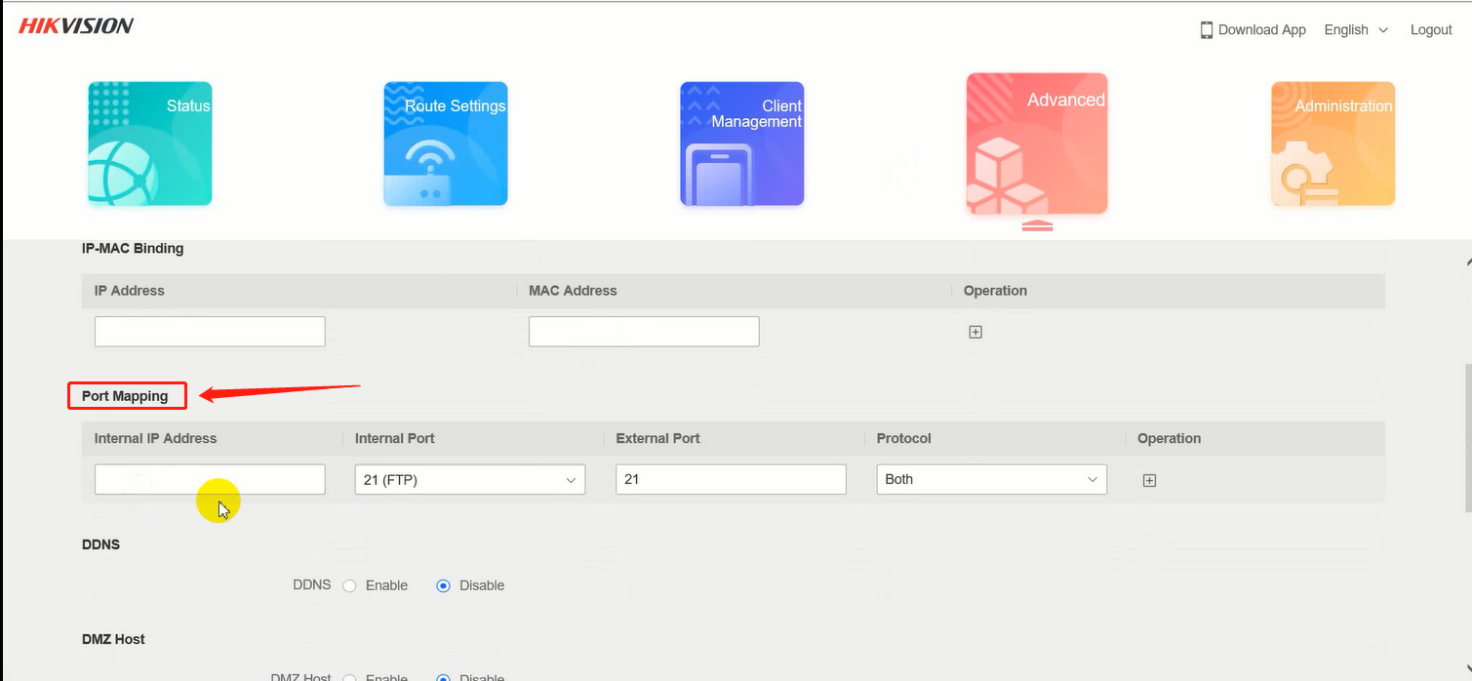
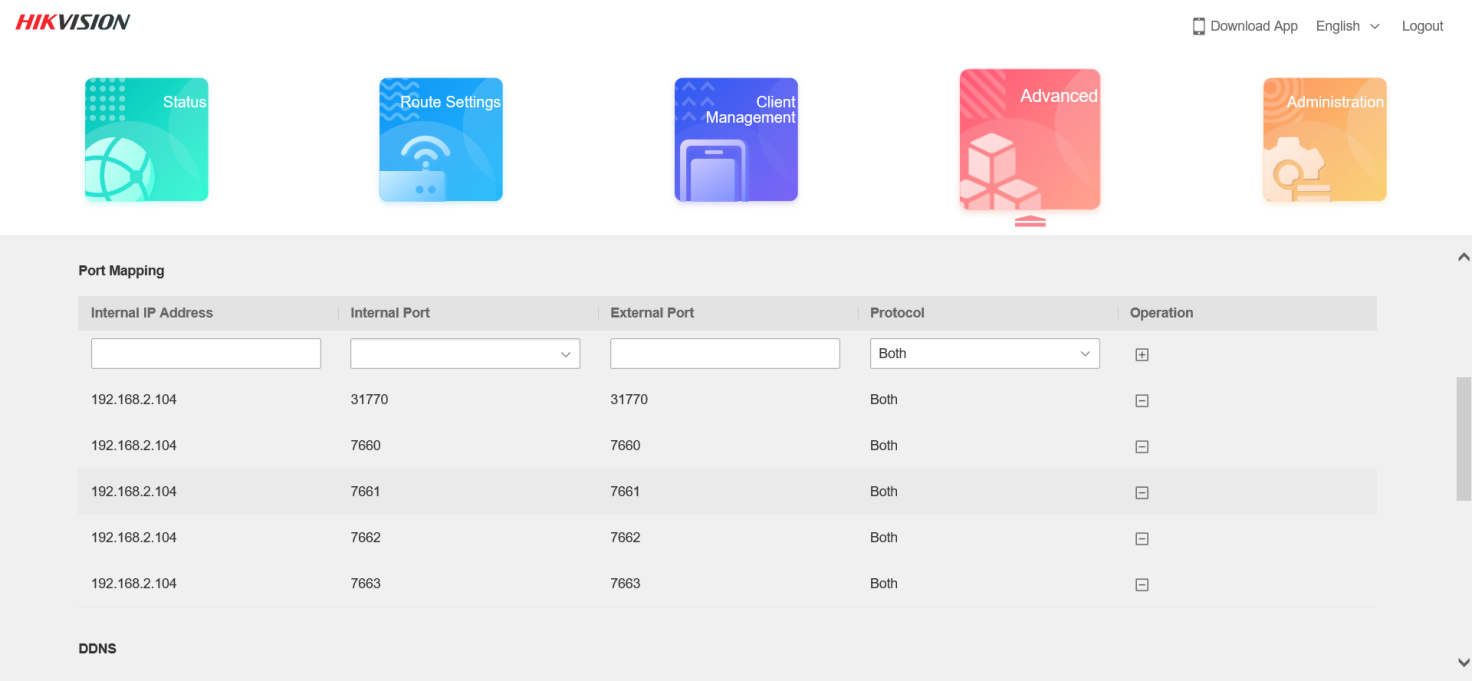
Map the five ports just recorded to the Public Network. The external port needs to be consistent with the internal port.
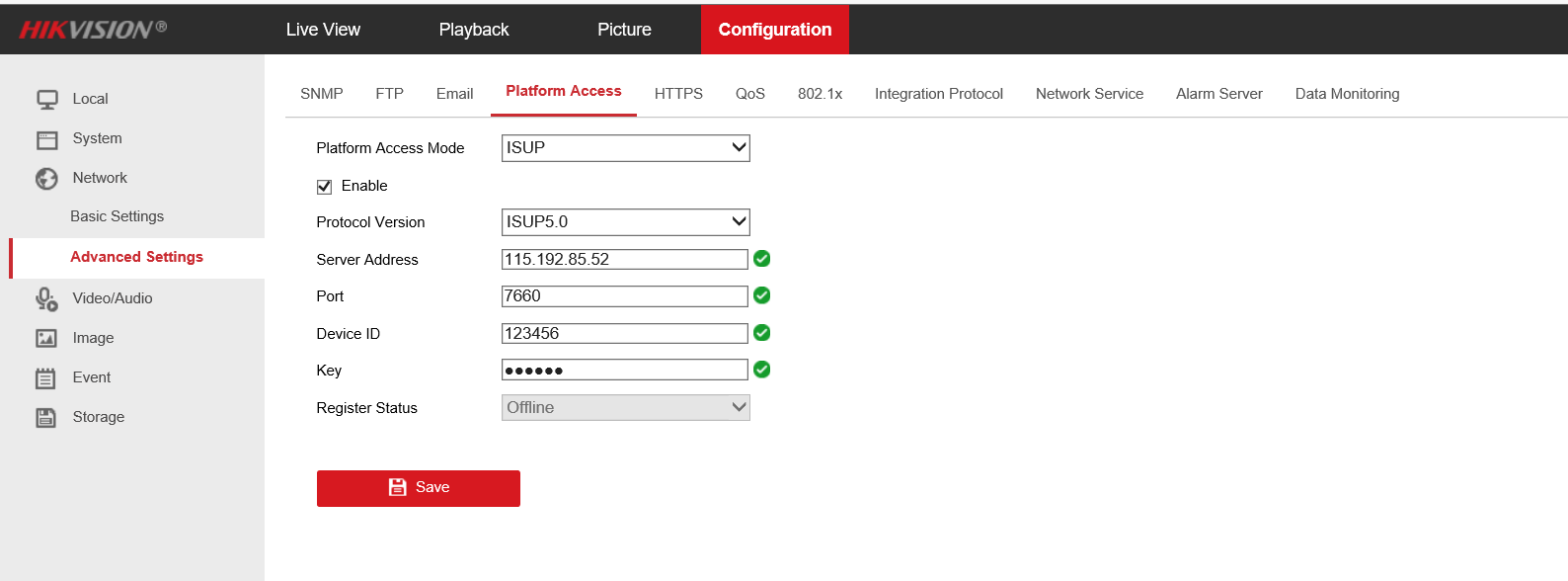
*Configure Camera ISUP access
*This step connects to the Step 6 of ‘Solar Camera Configuration’
After completing NVR configuration, go to Camera webpage Configuration-Advanced Settings – Platform Access, configure camera ISUP access. The server address is the external IP address of NVR. The port is the Proxy service port of NVR. The ID and password of the camera can set it at will. If there are multiple cameras, the ID should not be the same. Save after setting, refresh the web page, the register status will change from offline to online.
Adding Solar Camera to NVR
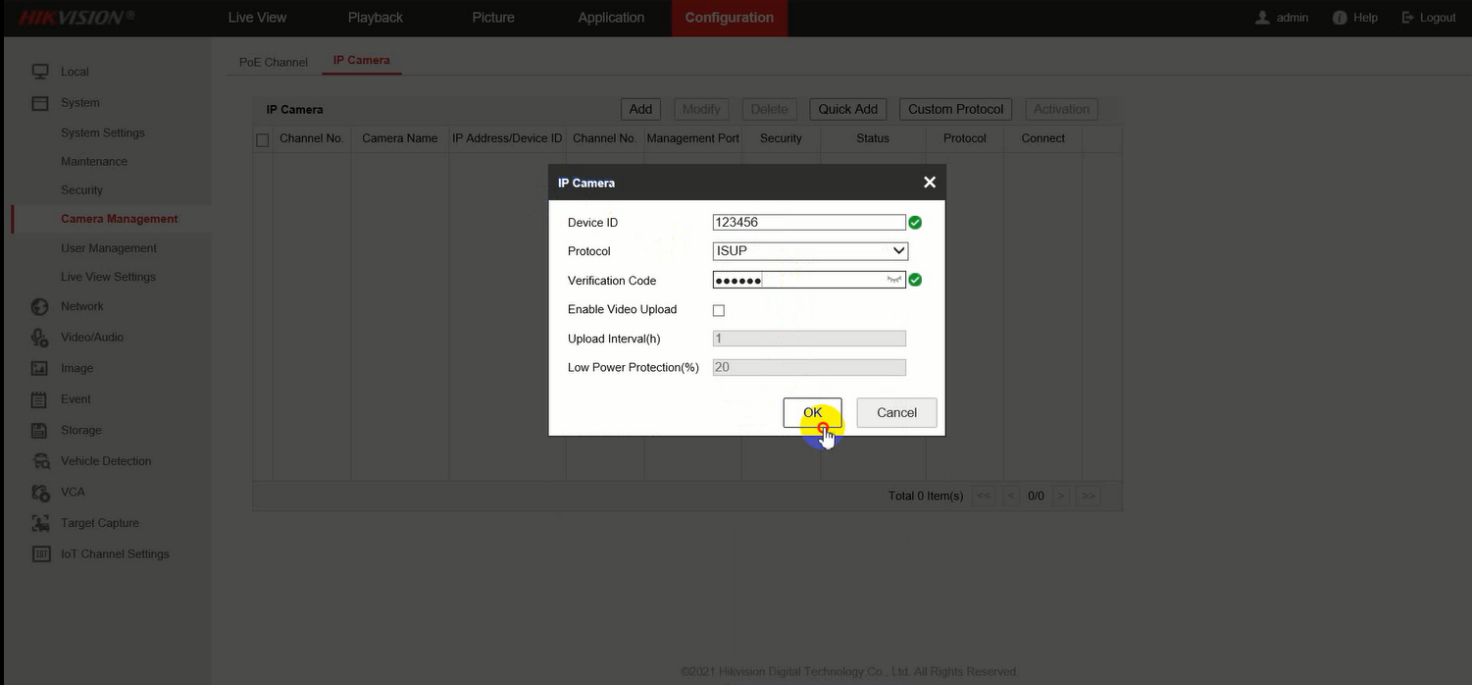
Go to the web page of NVR, add a camera, and select ISUP as the protocol
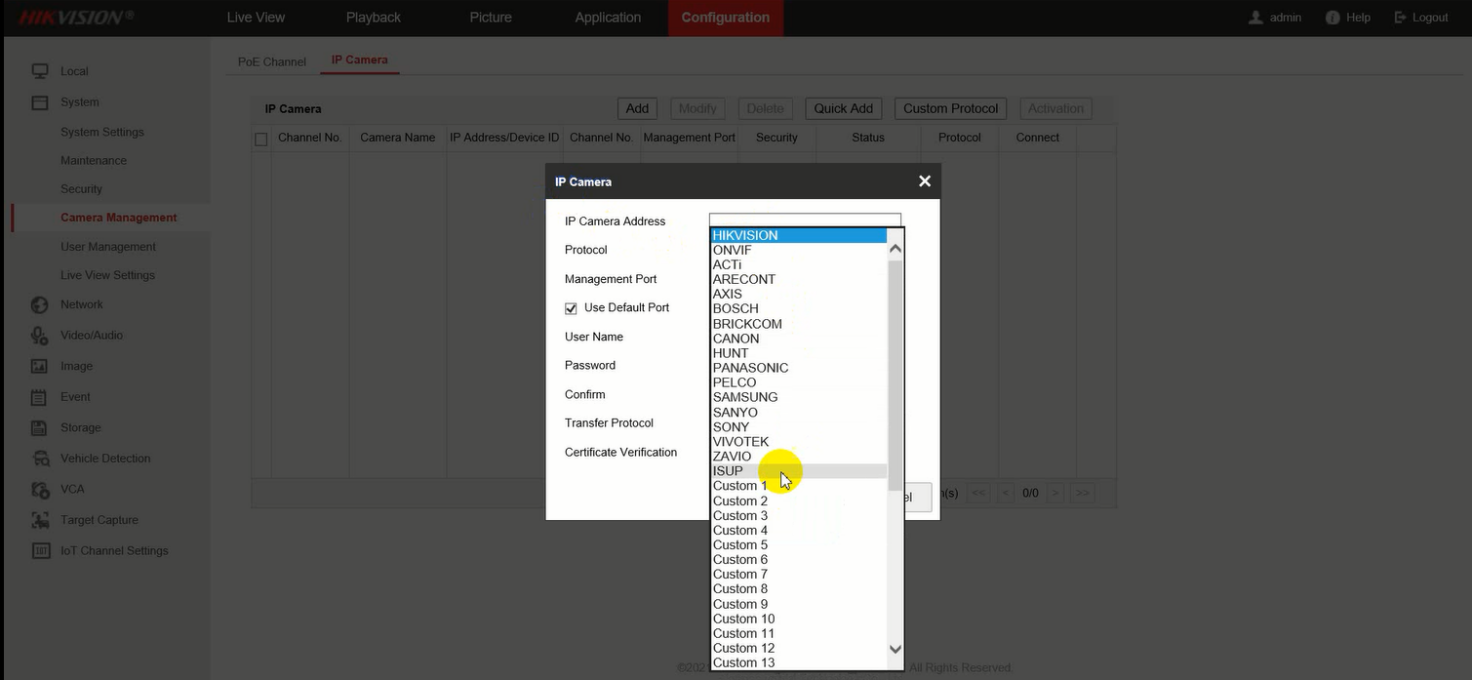
Fill in the device ID and password that set on NVR, click Enable Video Upload if configure the alarm mode on NVR is required. There are two configuration alarm modes. One of them is upload the alarm video by number of alarms, if the number of alarms is more than or equal to 3 (it can be custom setting), the alarm video will be loaded. Another alarm mode is upload alarm video by time, it will upload all alarm videos during one hour(it can also be custom setting).
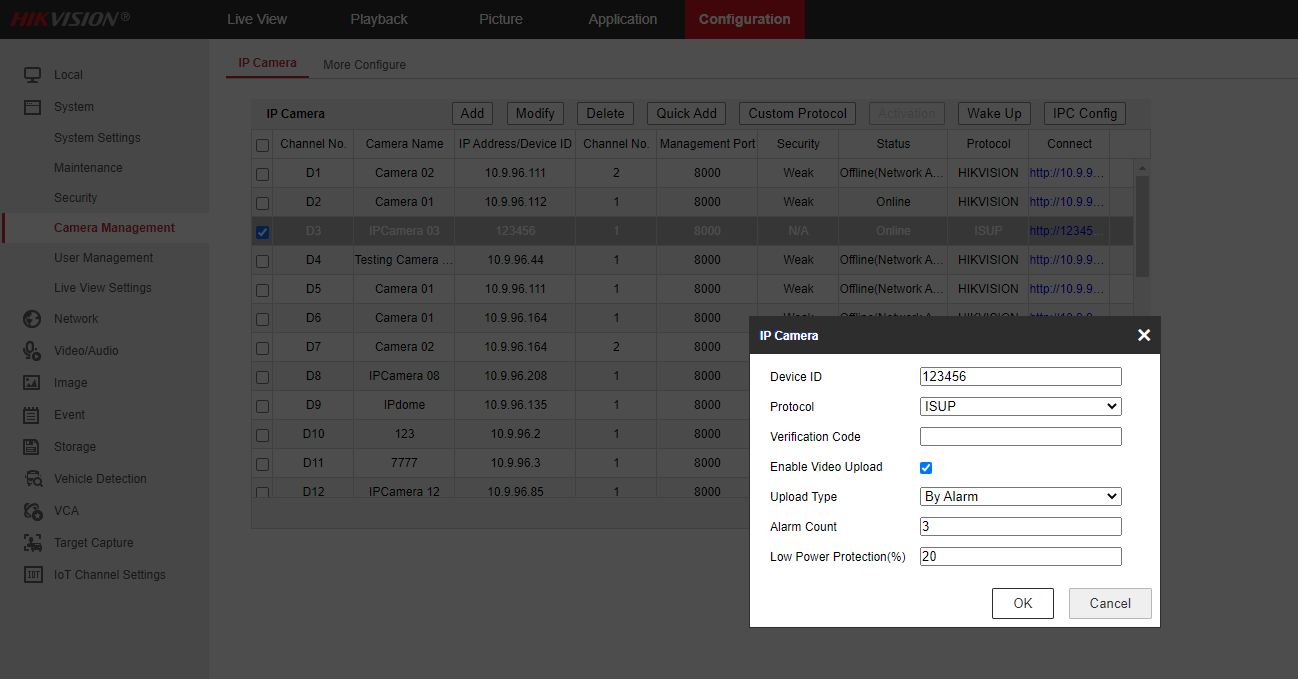
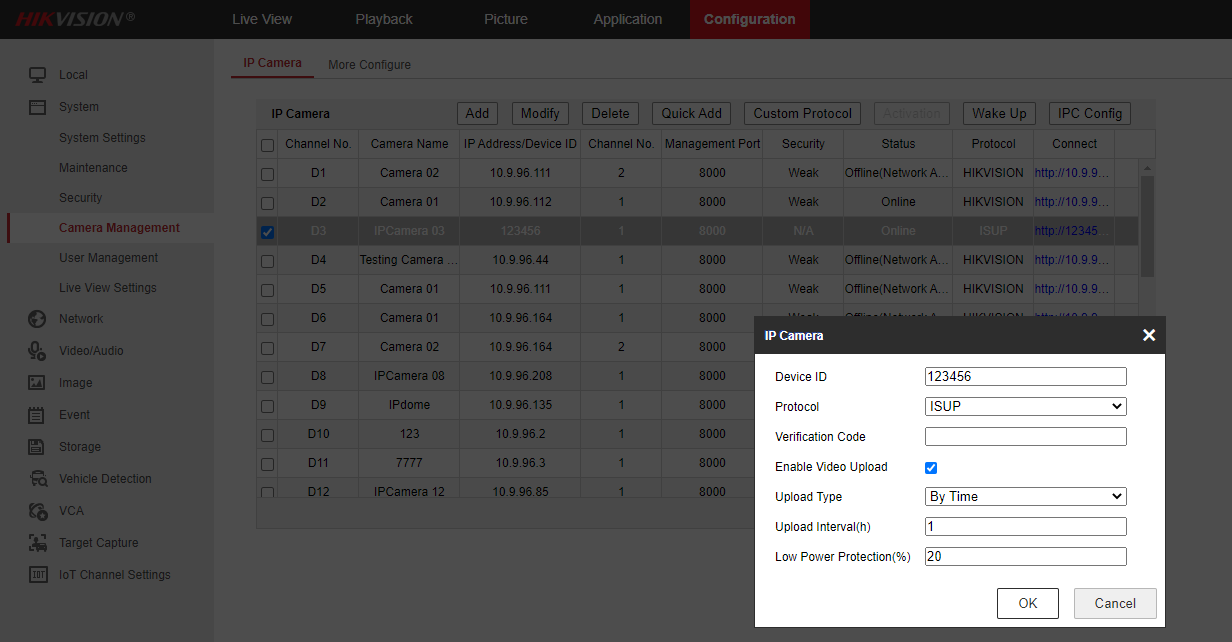
Refresh the page and the camera status is online.
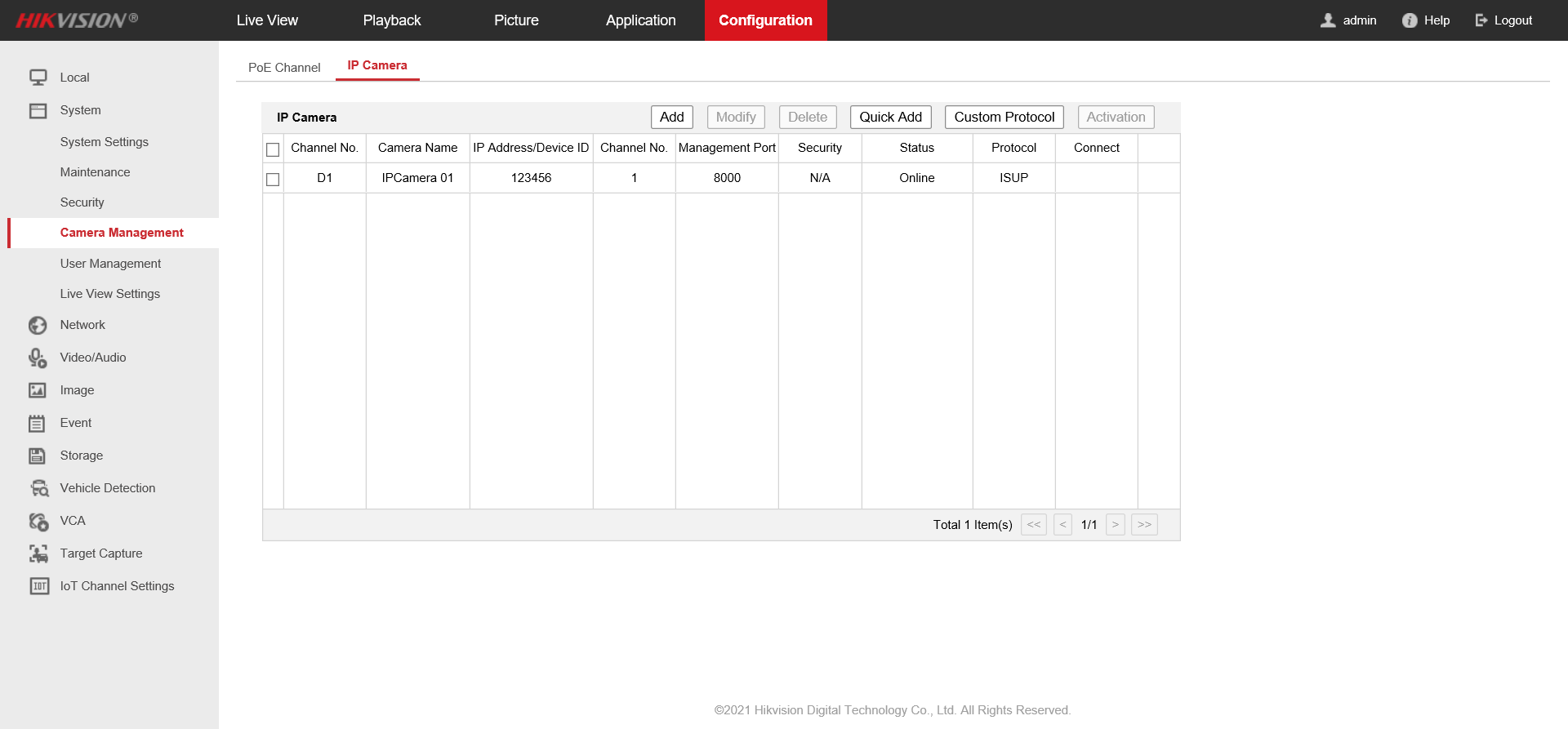
Configure IP Camera from NVR via function of IPC Config
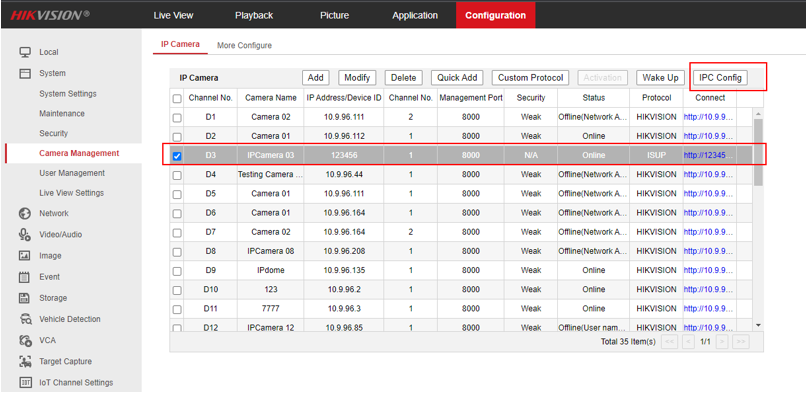
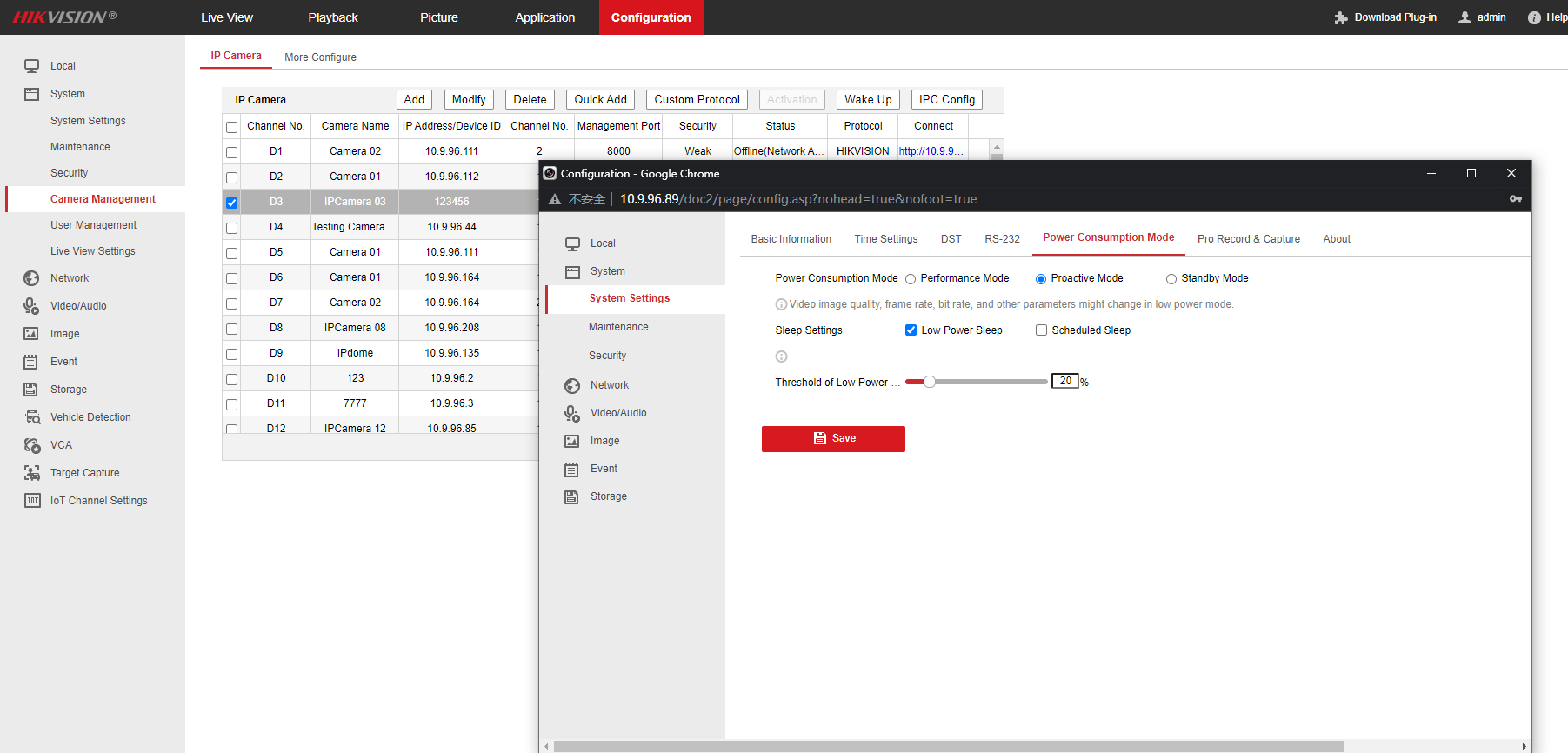
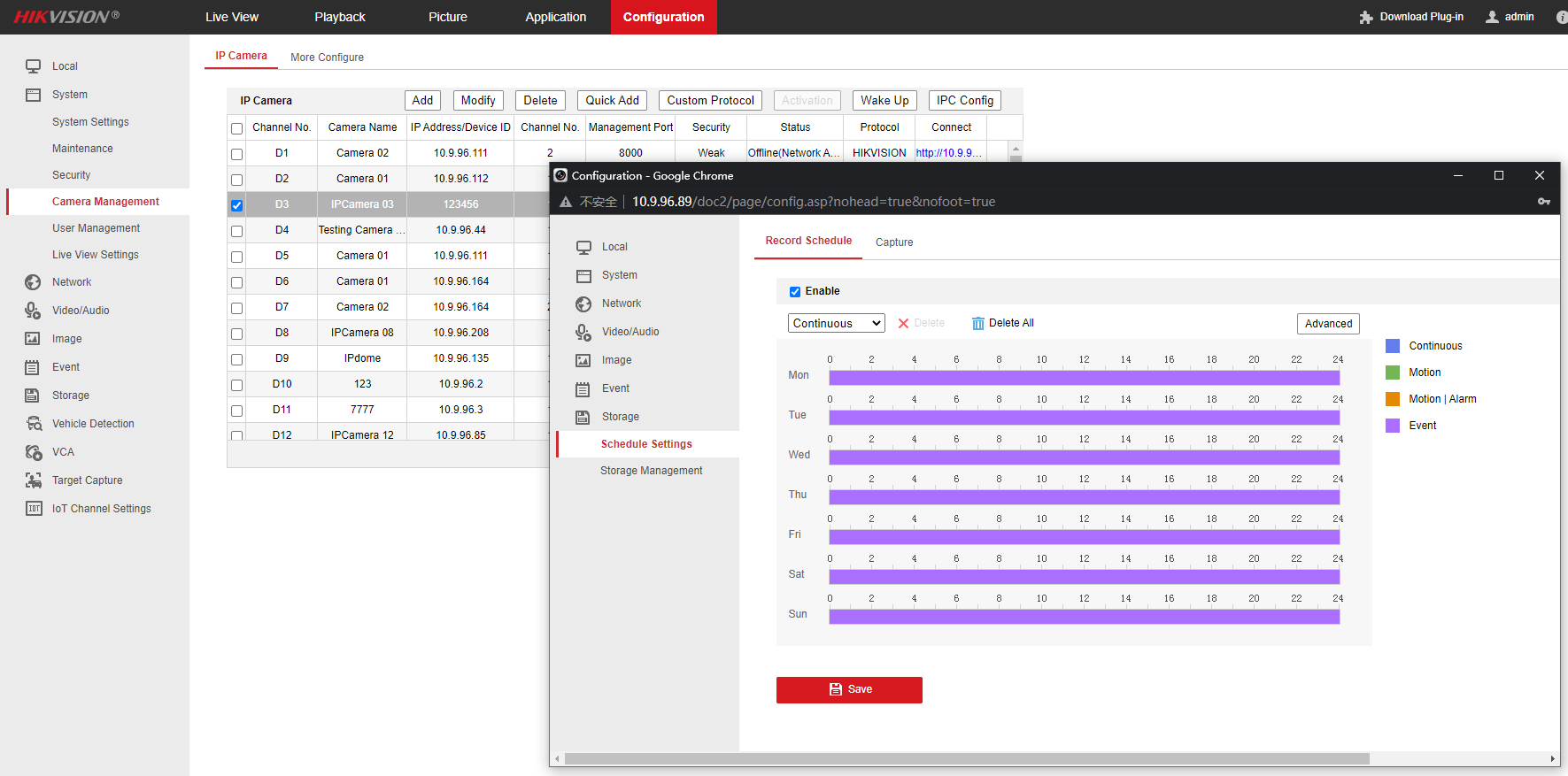
Wake camera up on NVR, when the camera is during low power sleep or is sleeping under scheduled sleep.
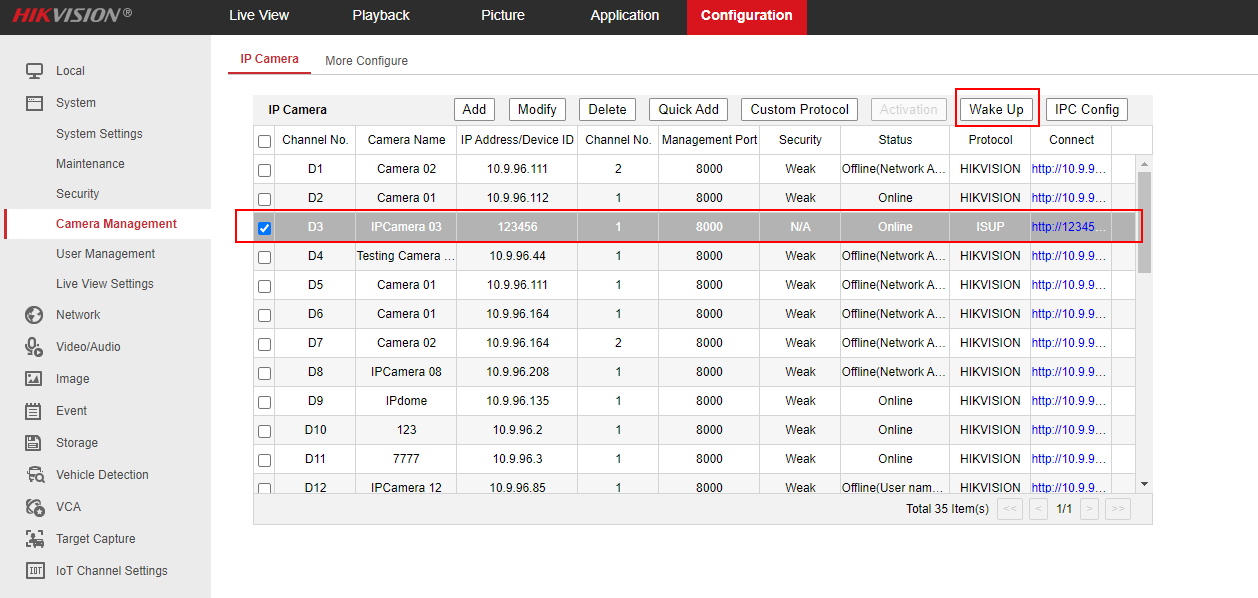
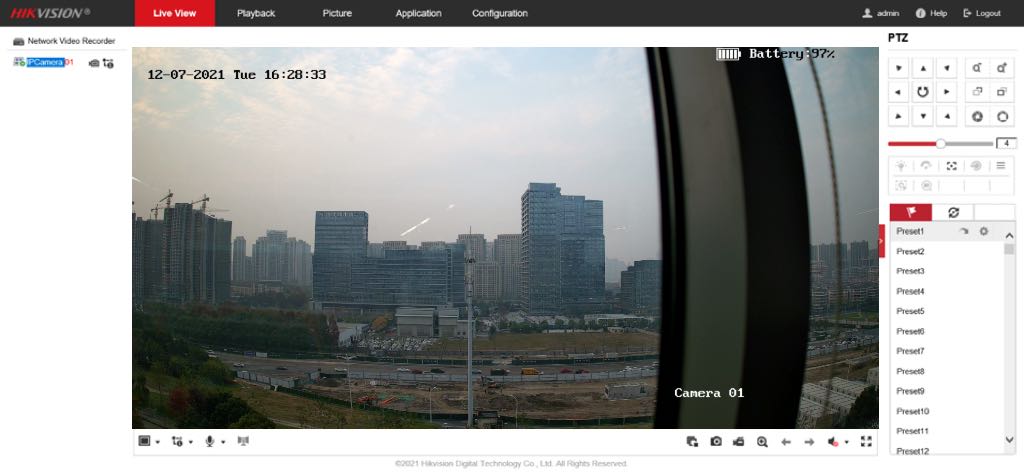
In the Live View interface, the camera can be previewed
OTAP Protocol
Required devices and firmware
One M series device, whose version must be higher than 4.63. This article uses DS-9664NI-M16 / R V4.63.000 build 230412 as an example.
One solar camera that supports OTAP protocol. This article uses DS-2XS6A87G1-L/C36S80 V5.7.40 build 230424 as an example.
Solar Camera Configuration
Preparation
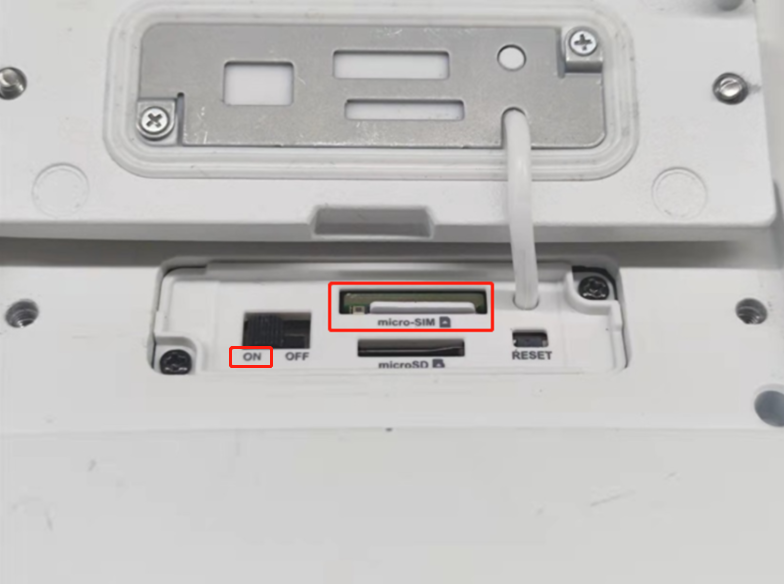
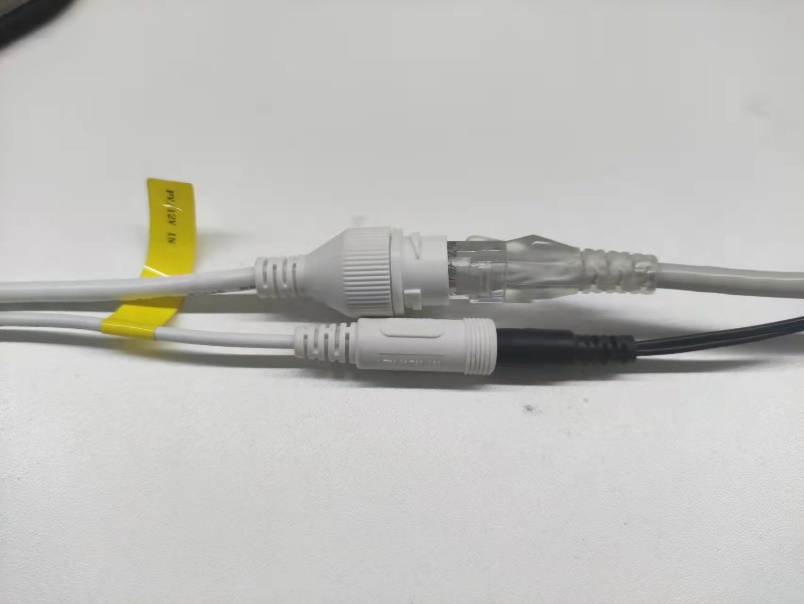
Turn the camera switch to ON,and insert a 4G SIM card. Connect the camera to the power supply and network cable.
Open the camera webpage
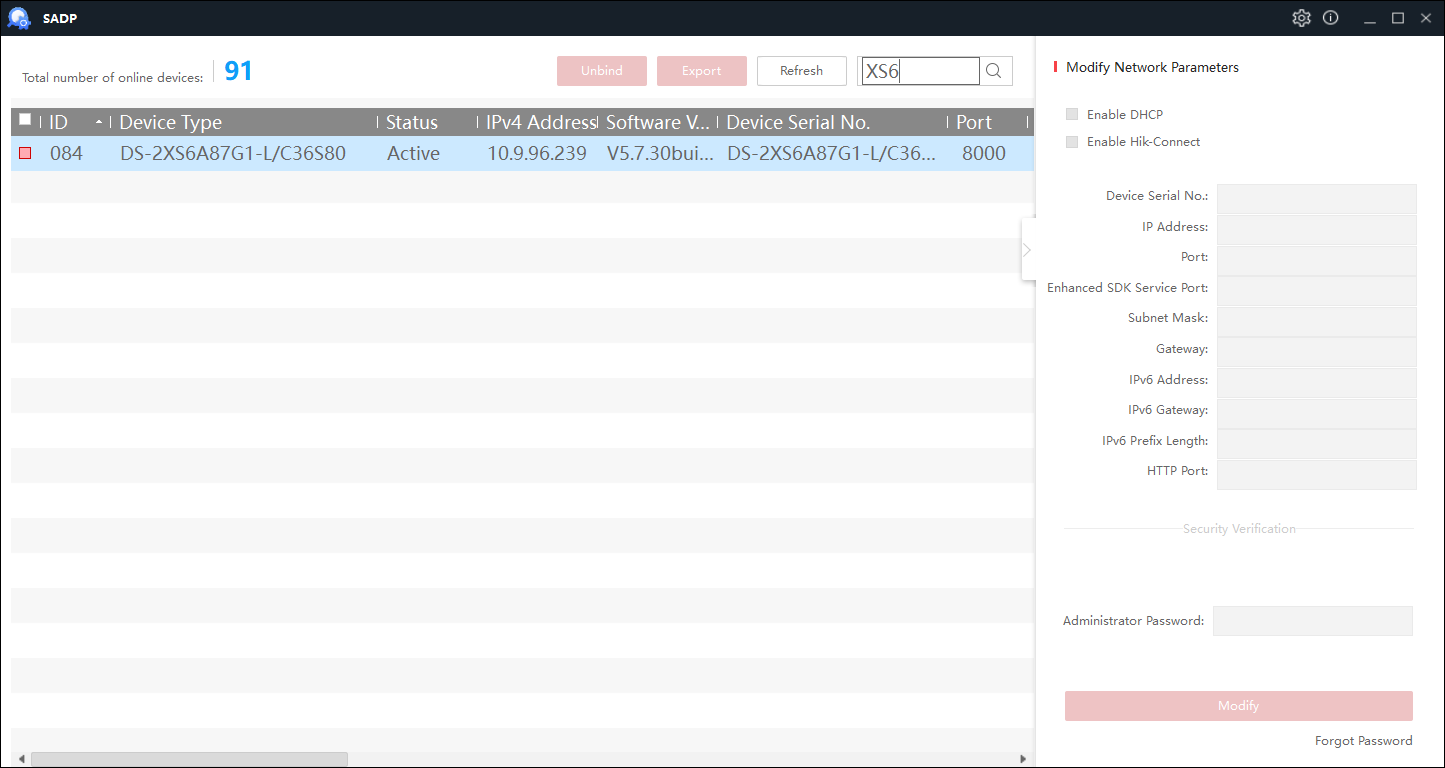
Open SADP, find Solar Camera, and double-click to open the webpage.
Switch camera power consumption mode
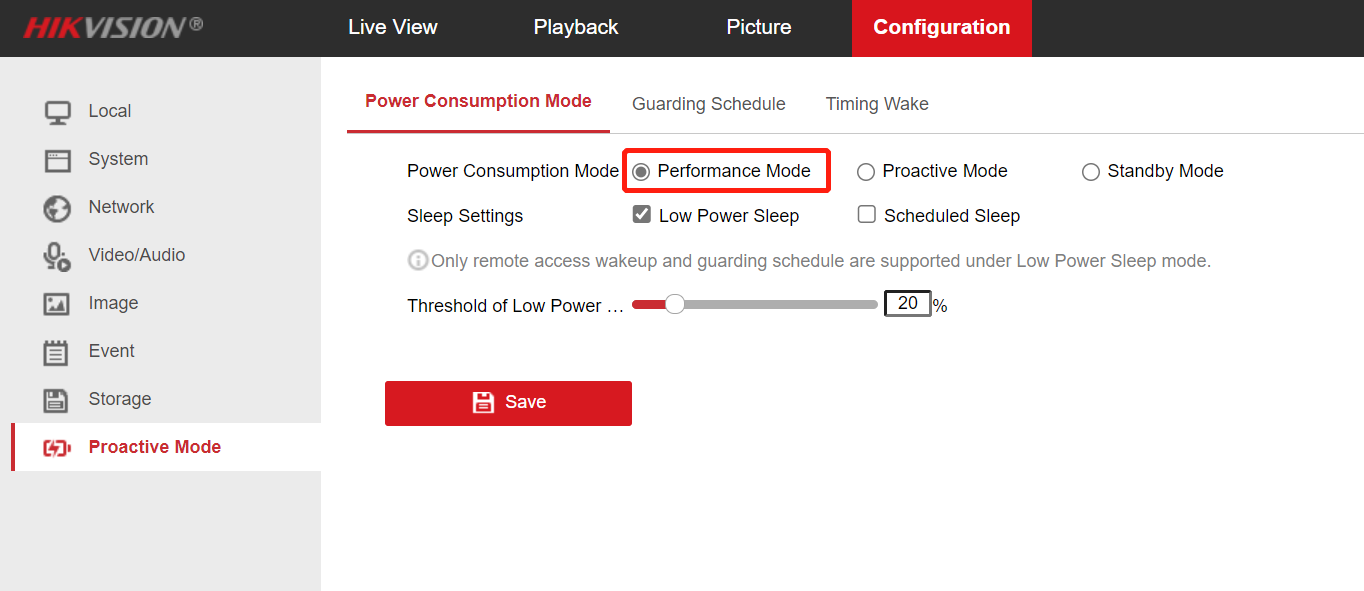
In Proactive Mode - power consumption mode, change the power consumption mode of the camera to Preformance Mode.
The camera's default factory power consumption mode is proactive mode, in which no event triggers the camera to go offline. The camera can be searched through the Internet cable within the first 5 minutes after power-on, and then the camera is in offline mode. Please visit the camera webpage within 5 minutes after power-on. For further configuration, change the proactive mode to performance mode. If the camera is offline, you can power it up again.
After configuring all the content, you can adjust the power consumption mode to the mode you need, and the default is Proactive Mode.
Check 4G network
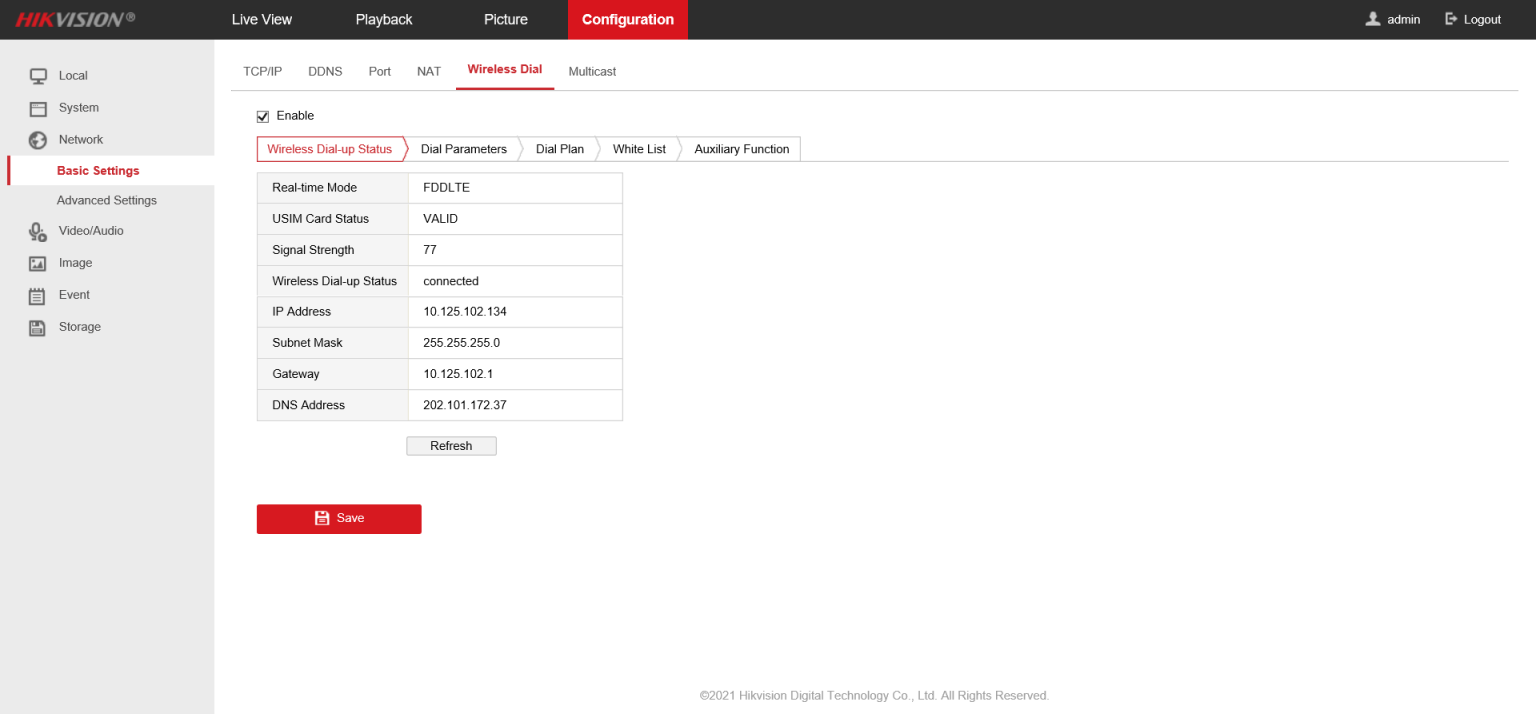
In Network - Basic Settings - Wireless Dial page, check whether the 4G connection is normal.
Configure a recording schedule
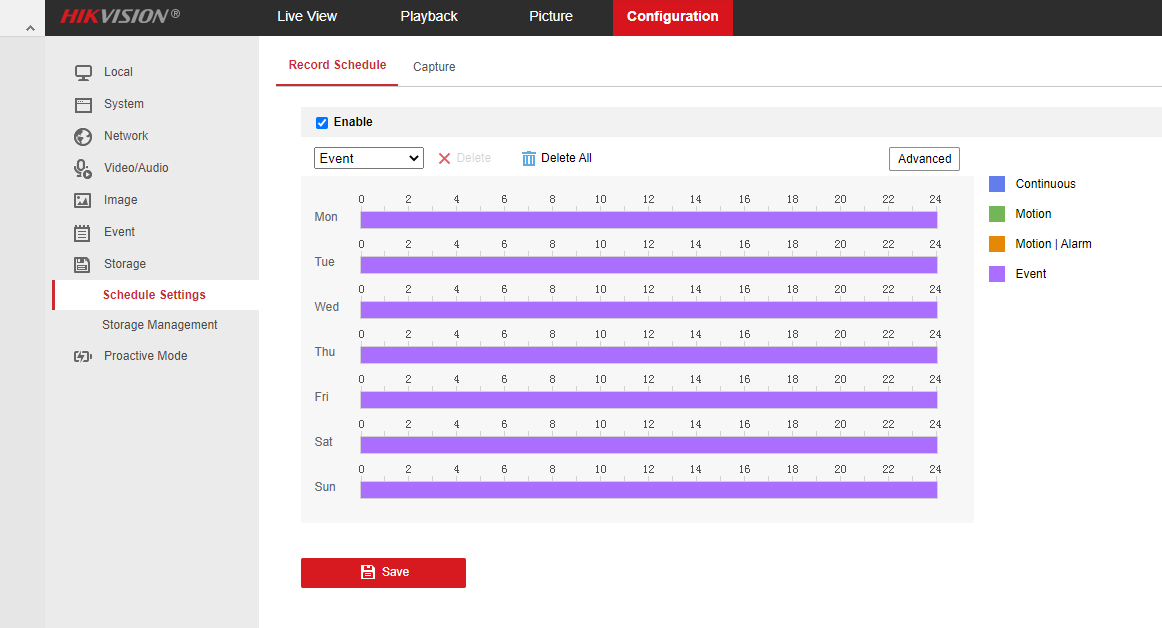
Configure a recording schedule on the camera to ensure that the camera has videos required by the customer for video uploading.
Configure camera OTAP Access
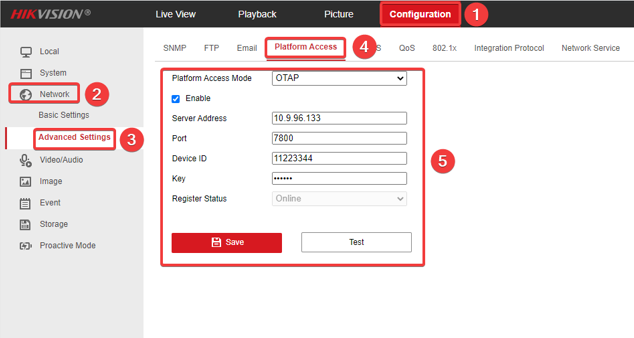
1. Log in to the web side of camera, and click Configuration-Network-Advanced Settings-Platform Access to enter the platform configuration page. Set Platform Access Mode as OTAP, enable the function, input related parameters, and then save the configuration.
Note:
- Server Address is the IP of NVR.
- Port is OTAP port, set 7800 by default.
- Device ID is defined by user, and will be used for adding solar camera to NVR.
- Key specifies the authentication password required for registration. The value is user-defined.
- Register Status shows the OTAP connection status of the current device. After the connection is successful, Online will be shown here.
NVR configuration
Open NVR webpage
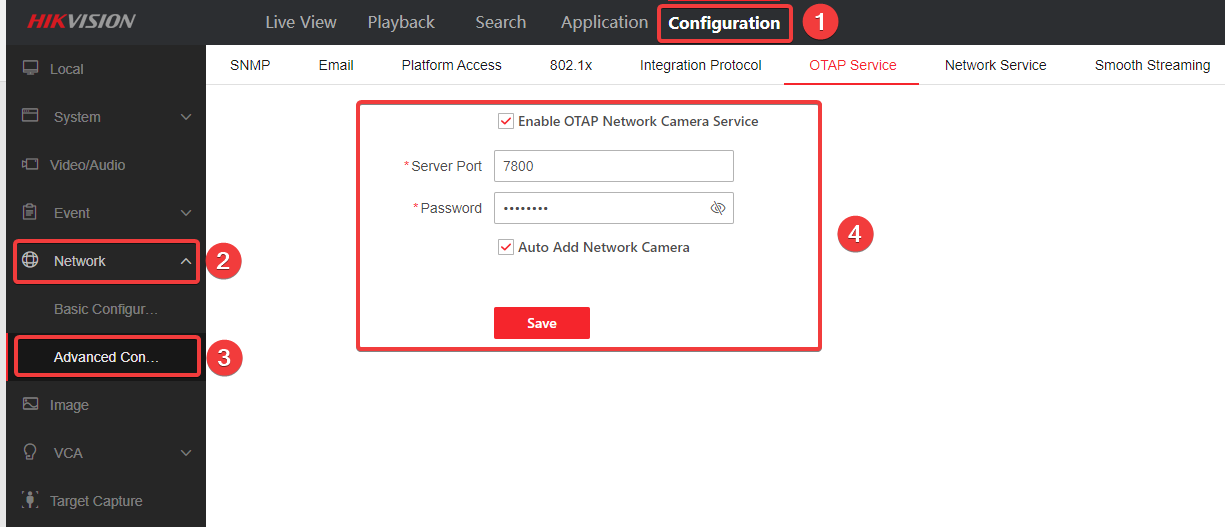
- Log in to the NVR web side, and click Configuration-Network-Advanced Configuration-OTAP Service to enter the OTAP Service configuration interface. Enable the OTAP Network Camera Service, enter the server port (default: 7800), and enter the verification password to save the configuration.
Auto Add
If Auto Add Network Camera is enabled, NVR will automatically add the solar camera whose OTAP server address is NVR’s IP address and password verification passes.
Manual Add
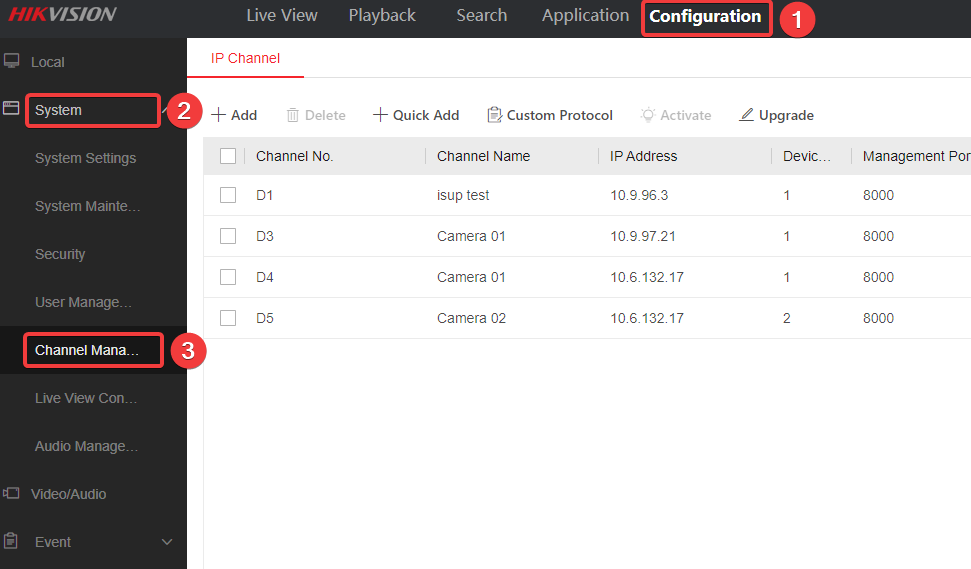
If the solar camera is not automatically added, user can go to the channel management page and add the solar camera manually.
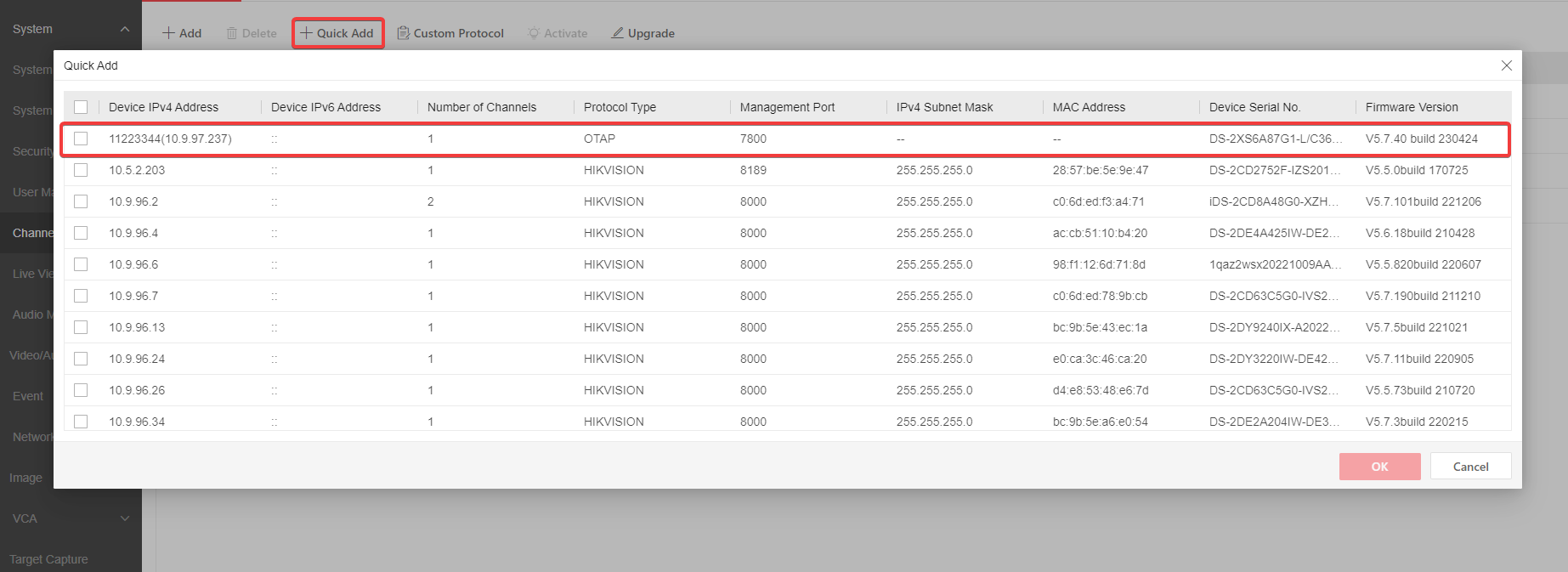
Quick Add: Click Quick Add and the device will search the camera that can be added. You can quickly add a solar camera in this way.
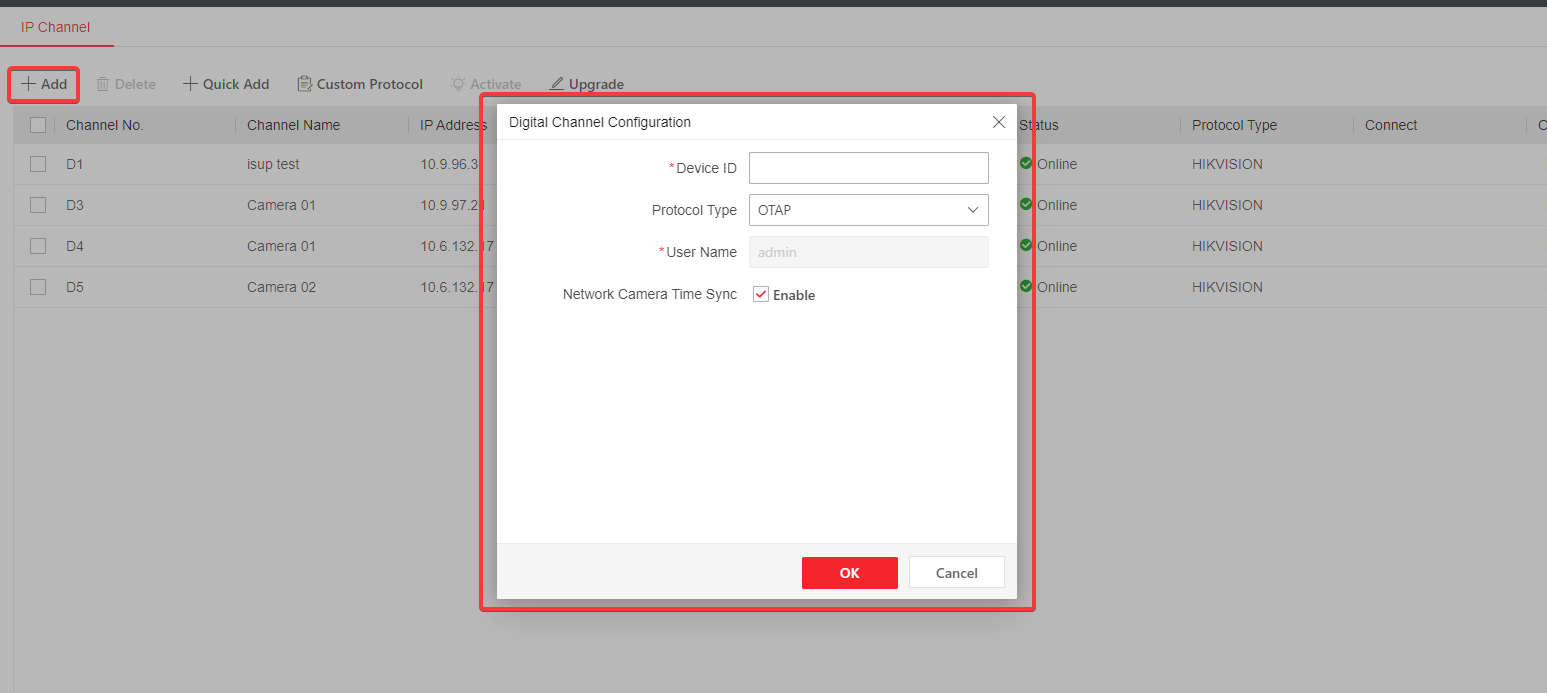
Manually Add: Click Add, select protocol as OTAP, and enter the camera Device ID to add the solar camera.
After the camera is successfully added, you can view the information about it. In addition, this version supports the power display of the solar camera.

Live View
- Click Live View on the top bar, then user can enter the Live View page to check the live view and power display of solar camera.
Note: In order to prevent excessive traffic consumption, only 5 minutes is supported for single live view. NVR will stop streaming from camera after 5 minutes. If necessary, you can click the channel again to get stream.
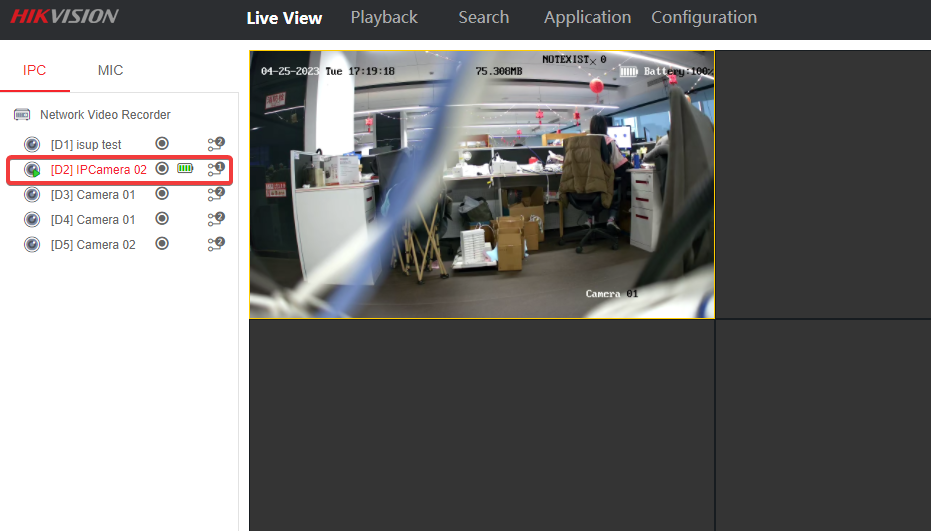
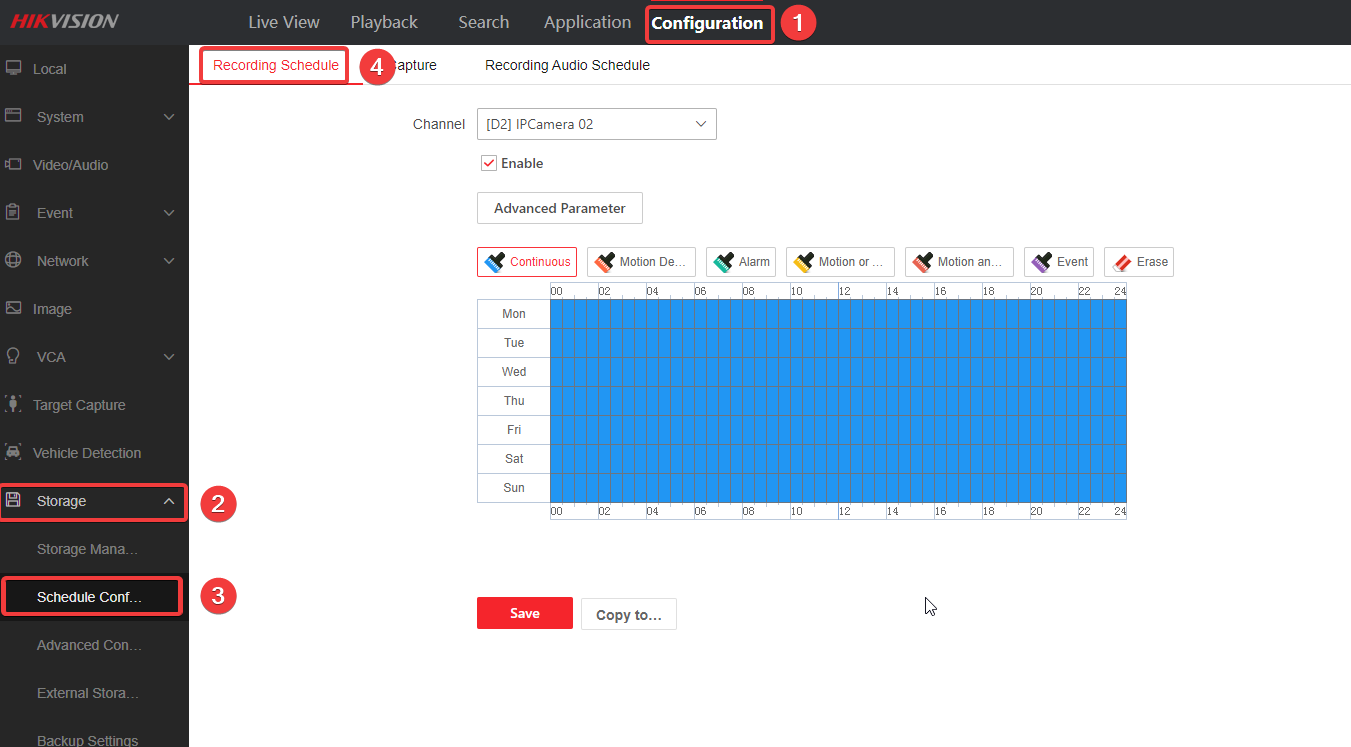
- In order to check playback of solar camera on NVR, users need enter recording schedule setting page to do related configuration first.
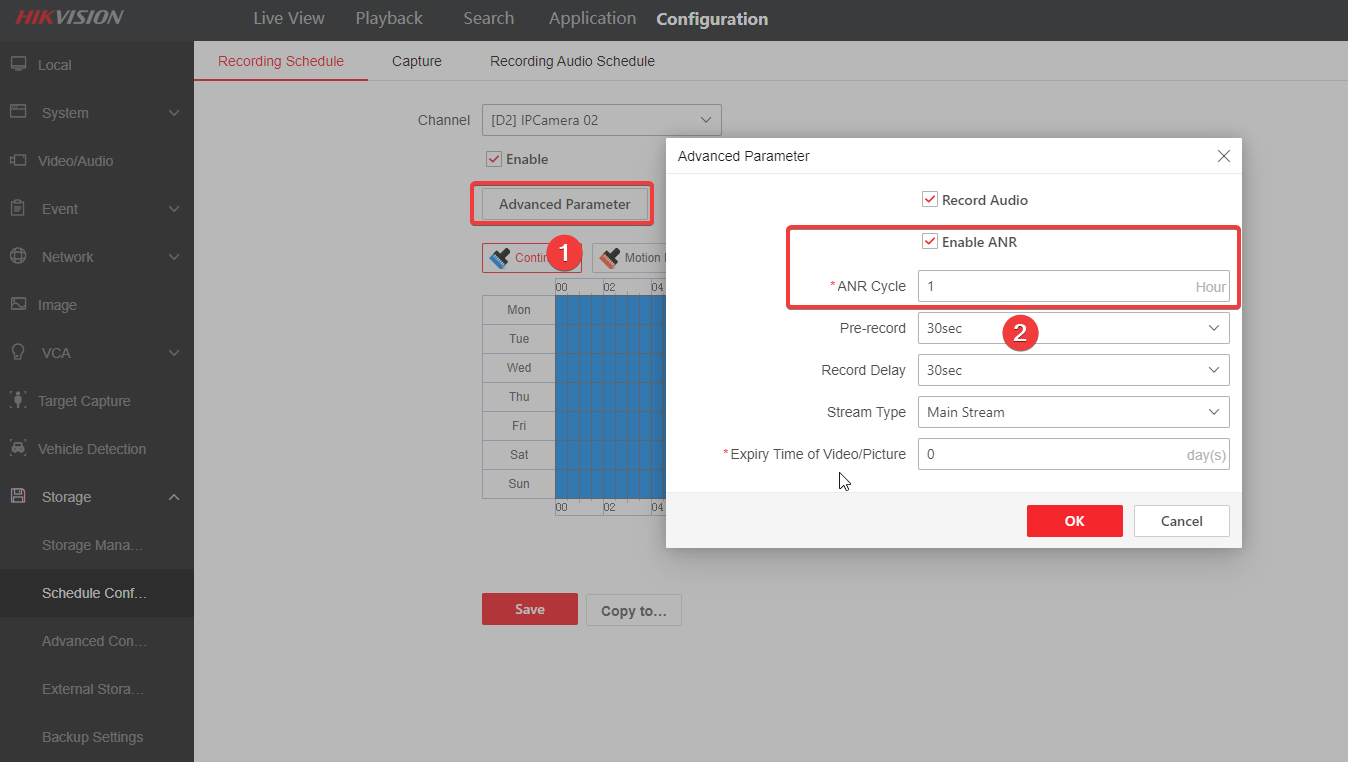
NVR recording schedule is only valid for video clips that the NVR streams. To configure video uploading from solar camera, users need click Advanced Parameter to enable ANR and set the ANR uploading cycle.
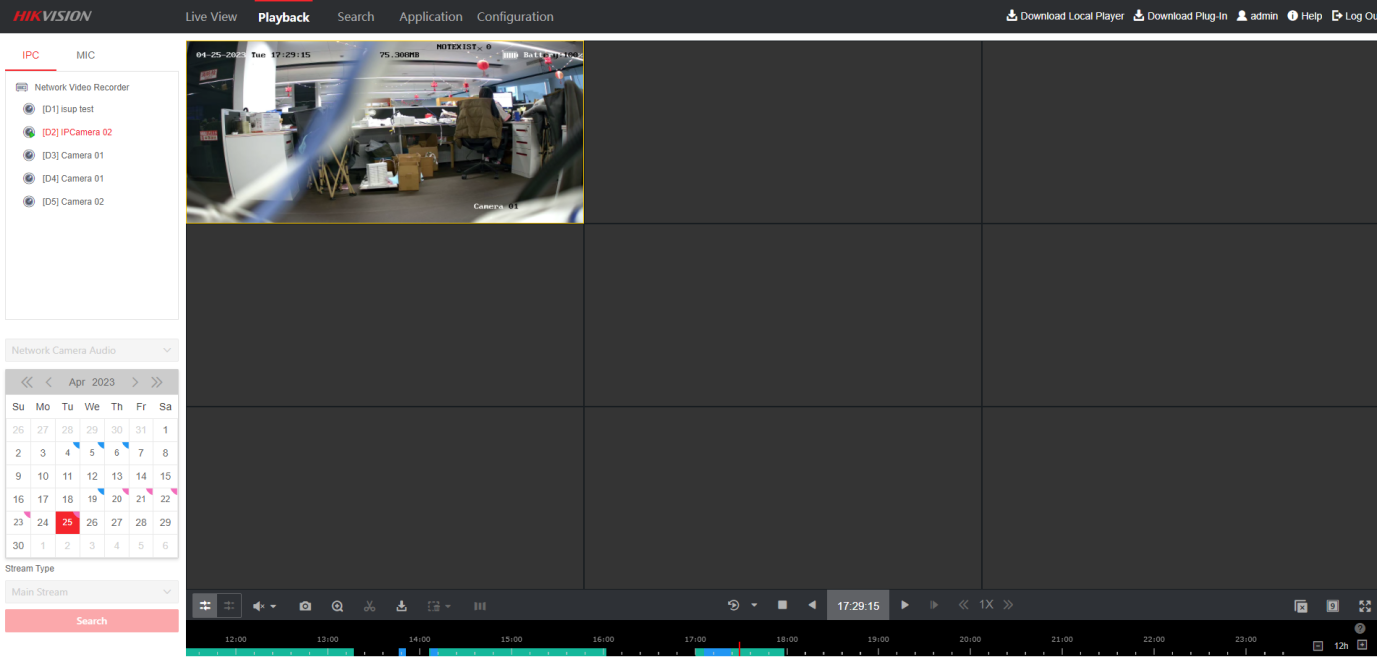
After configuration, user can check playback on NVR later.
- This version of NVR also supports the configuration of the Power Consumption mode of the solar camera. Click Configuration-Low Power Consumption and user can switch between the three power consumption modes shown as below.