
Solar-Powered Cameras – Troubleshooting Guide
Applicable Models:
DS-2XS6A46G1-IZS, DS-2XS6A87G1-LS, DS-2DE5425IWG-K/4G
This guide addresses common causes of offline status or connectivity loss related to power (battery/solar) and 4G network operation.
- Power Issues (Battery / Solar Panel)
Camera Powered Off
If the camera is offline, check the system status LED.
- Flashing: The camera is powered and running.
- Off: No power is reaching the device.
In case of no LED activity, start with panel and battery diagnostics.
Solar Panel Orientation
Solar panel positioning is essential.
Ensure the panel is:
- Facing the optimal direction for solar exposure
- Properly angled
- Free of shading and obstruction throughout the day
Inadequate sunlight will prevent both operation and battery charging.
Allow 24 hours of continuous exposure before evaluation.
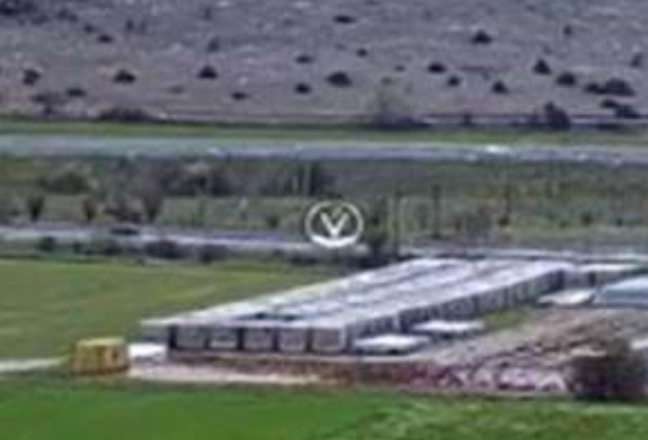
“【Ⓥ】” Voltage Warning Symbol
If the live view shows a “【Ⓥ】” symbol or it flashes intermittently,
the input voltage is below the required operating level.
This may result in live view drop or device restart.
Battery Status “UNKNOWN”
If the battery percentage in the OSD shows “UNKNOWN”,
there may be a communication issue between the camera and the battery.

Steps:
- Confirm the RS-485 connection between camera and battery box
- Reseat both ends
- Upgrade the firmware if the issue persists
Modular Battery Connection Fault
- Ensure battery modules are fully inserted
- Check that locking latches are properly engaged
- Inspect the wiring from panel to battery box
- Loose terminals or misalignment may prevent charging.
Refer to the quick start guide for more details.
Shuts Down After External Power Disconnect
If the device powers up with 12V during configuration but shuts down after disconnecting, check if the battery box was connected at that time.
These models do not include internal backup batteries.
Incomplete Charging or Quick Drain
If the battery never reaches full charge:
- Replace with a known-good battery pack to test
- If the issue persists, escalate to technical support
If the device drains power quickly:
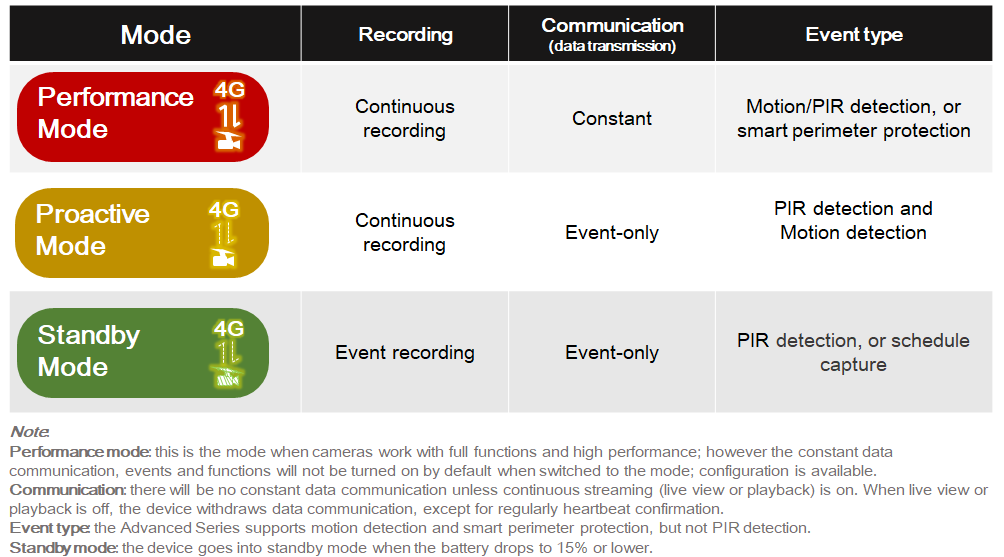
Confirm the power mode setting
- Standby Mode: Minimal consumption
- Proactive Mode: Balanced
- Performance Mode: High consumption
- Cellular Connectivity
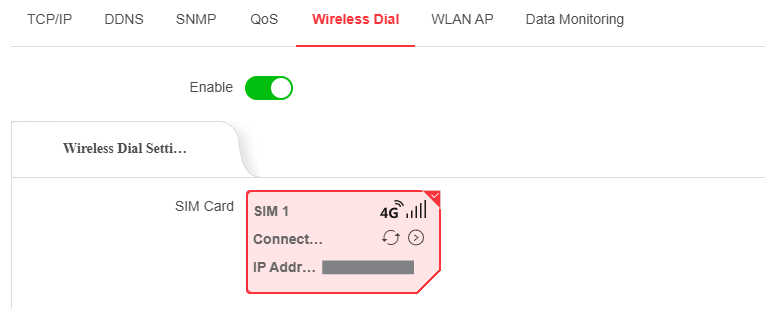
SIM Status “Disconnected”
Go to Configuration > Network > Wireless Dial.
If the SIM shows “Disconnected”, verify the following:
- SIM card is properly installed
- APN information and other parameters are correct, verify with provider
- Camera has been rebooted since insertion
Unstable 4G Connection
If the camera disconnects intermittently, or signal bars fluctuate frequently,
enable Band Locking (if supported by firmware).
Band Locking Configuration
- Steps to perform band locking:
- Insert camera SIM into a smartphone
- Disable 5G on the phone
- Use a signal test app to scan local LTE bands
- Identify top 3–5 strongest LTE bands
- Reinsert SIM into camera
Navigate to Band Locking section and manually select preferred bands
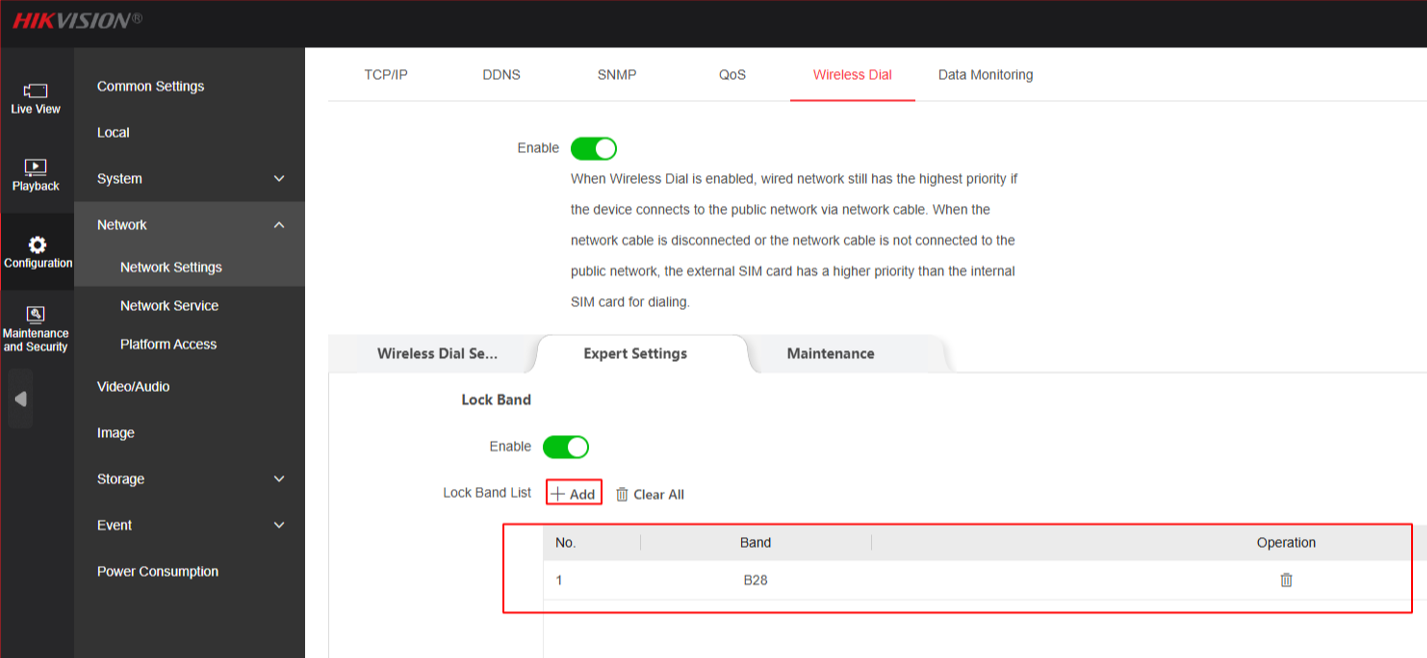
This prevents the camera from switching between unstable bands and improves connection stability.
For unresolved issues and details, please contact technical support.